

Team and products
FeedbackOtter has three levels:
| Level | What it is | Example |
|---|---|---|
| Workspace | Your company. It holds your team. | Acme |
| Product | One app you collect feedback for. | Acme Analytics, Acme Mobile |
| Member | Someone on your team who uses the dashboard. | You and your teammates |
Everyone on the team can use every product in the workspace.
Invite your team
Section titled “Invite your team”Click your initials at the bottom of the sidebar, then Invite teammates.
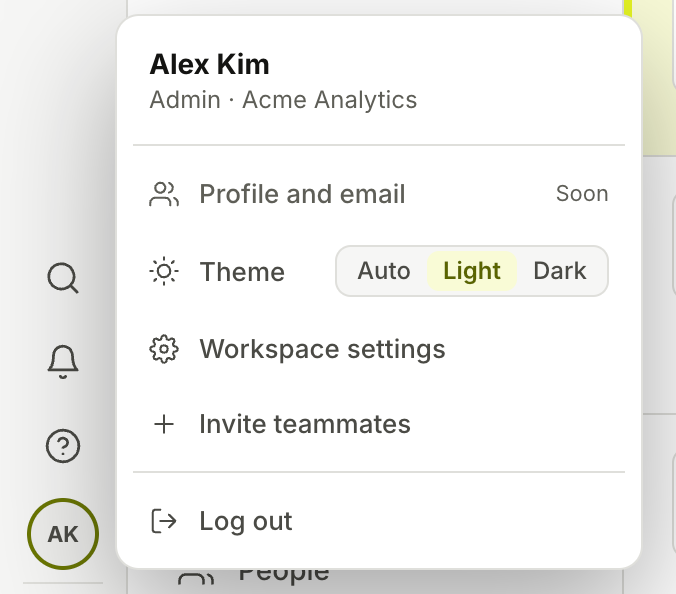
That opens Workspace settings → Team.
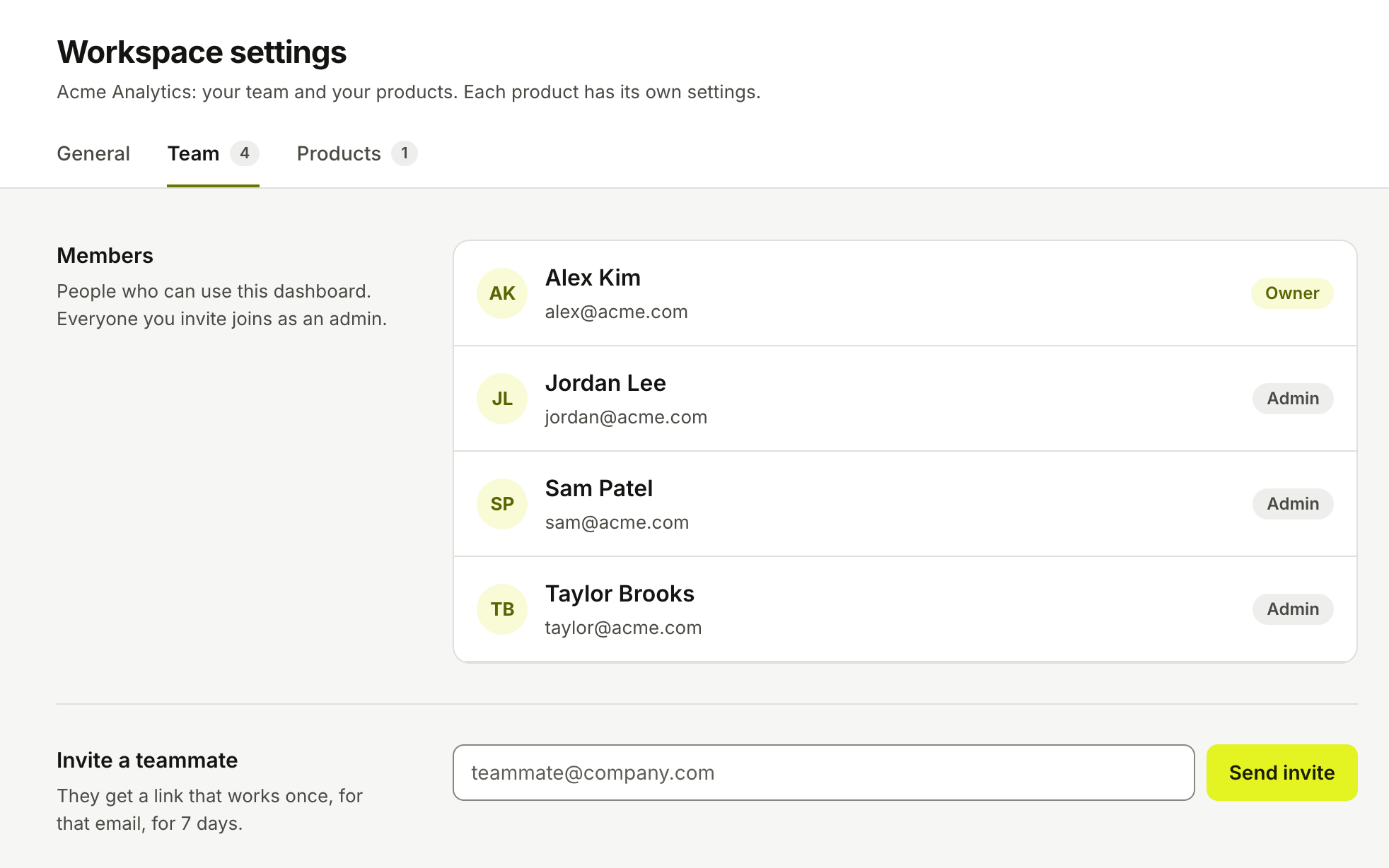
Type their email and click Send invite.
- They get a link that works once, for that email, for 7 days.
- They sign in or sign up with that email, then join your workspace. A forwarded link won’t work for anyone else.
- Inviting the same email again replaces the old link.
- Pending invites show under the team. You can cancel one.
If the email can’t be sent, the dashboard shows the link so you can share it yourself.
| Role | Who | Can do |
|---|---|---|
| Owner | Whoever created the workspace. | Everything. |
| Admin | Everyone you invite. | Everything, except the owner-only actions below. |
Only the owner can:
- remove someone from the team,
- export a product’s data,
- delete a product or the workspace.
Removing someone takes effect straight away. Their own account stays; they just lose access.
Products
Section titled “Products”Each product is one app. Add one for each app you collect feedback for, so their ideas and users don’t mix.
Go to Workspace settings → Products. To open Workspace settings, click the gear at the bottom of the sidebar.
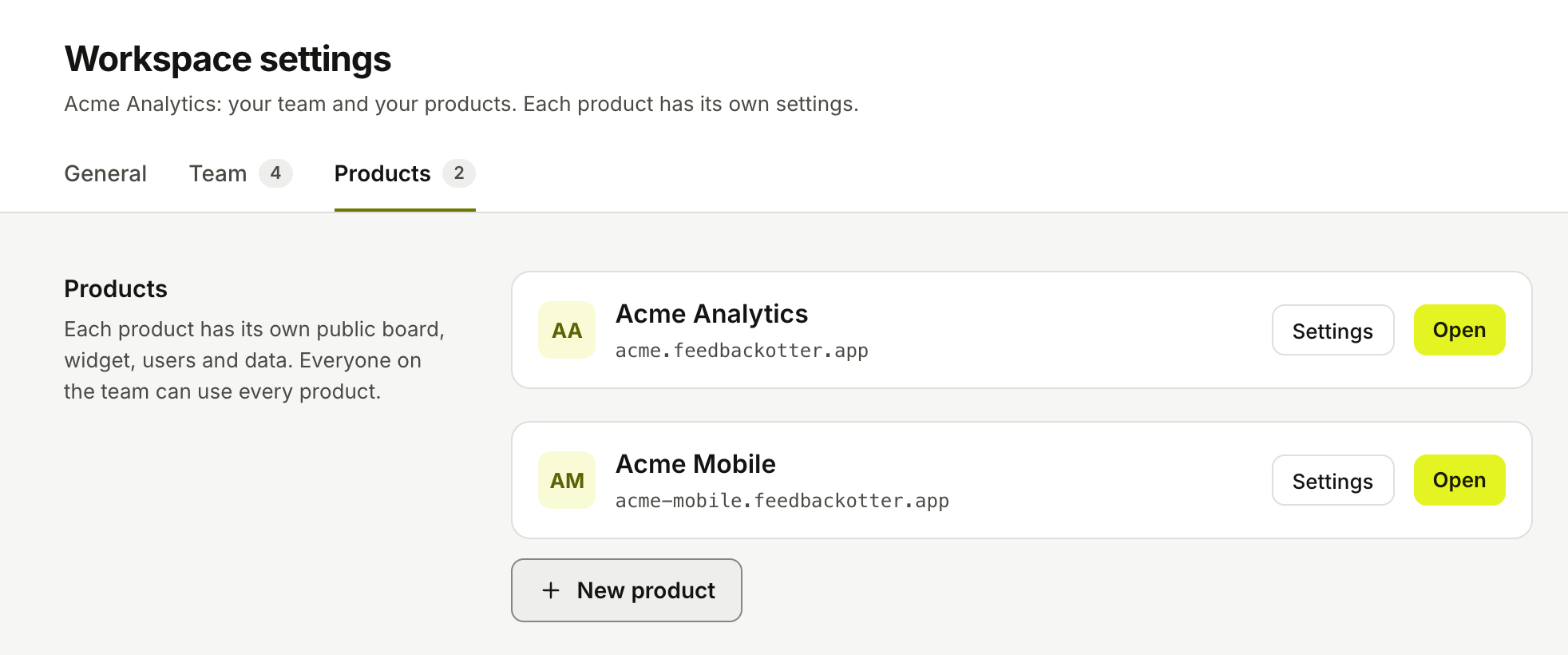
Click New product, give it a name, and pick its board address.
What each product has
Section titled “What each product has”Every product is separate. It has its own:
- public board, roadmap, changelog and Wall of love, at its own address,
- widget and public key,
- single sign-on secret,
- users (the people who vote and post),
- ideas, boards, tags, surveys and testimonials,
- settings.
Switch products
Section titled “Switch products”Click the product name at the top of the sidebar.
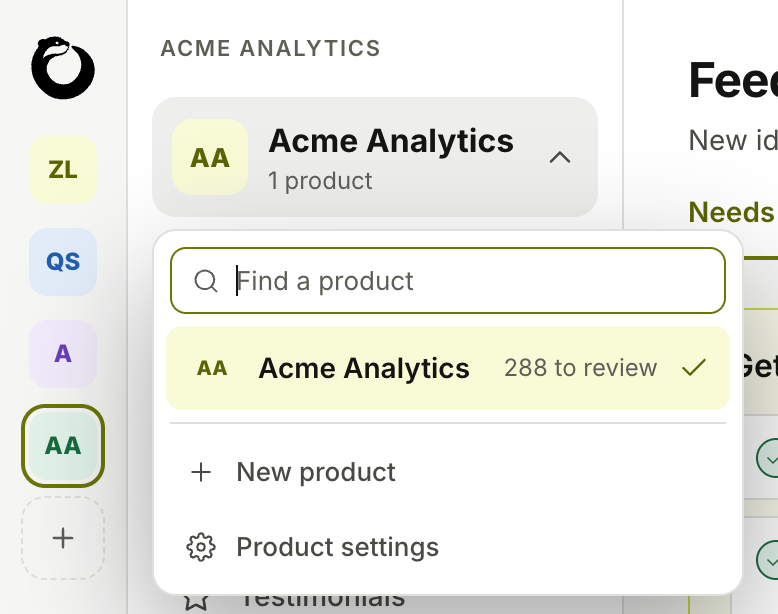
Each product shows how many ideas are waiting for review. Product settings opens the current product’s name, logo, board address, single sign-on and privacy settings.
More than one company
Section titled “More than one company”Need a separate team, for example for a client? Click + at the bottom of the left-hand rail to create another workspace. Its team and products are separate. Switch between workspaces with the icons in the rail.
Rename or delete
Section titled “Rename or delete”- Rename the workspace: Workspace settings → General. Your users never see this name.
- Delete a product: Product settings → Privacy & data. Owner only.
- Delete the workspace: Workspace settings → General. Owner only.
Deleting is permanent. It removes every idea, vote, user, changelog post, testimonial and survey in it. Your team’s accounts stay.