

Reviewing ideas
New ideas from your users wait in the Inbox. Nothing shows on your board until someone on your team approves it.
For each idea, you can:
- Approve it, so it goes on the board.
- Reject it, with a reason if you like.
- Merge it into an idea that already exists.
The Inbox
Section titled “The Inbox”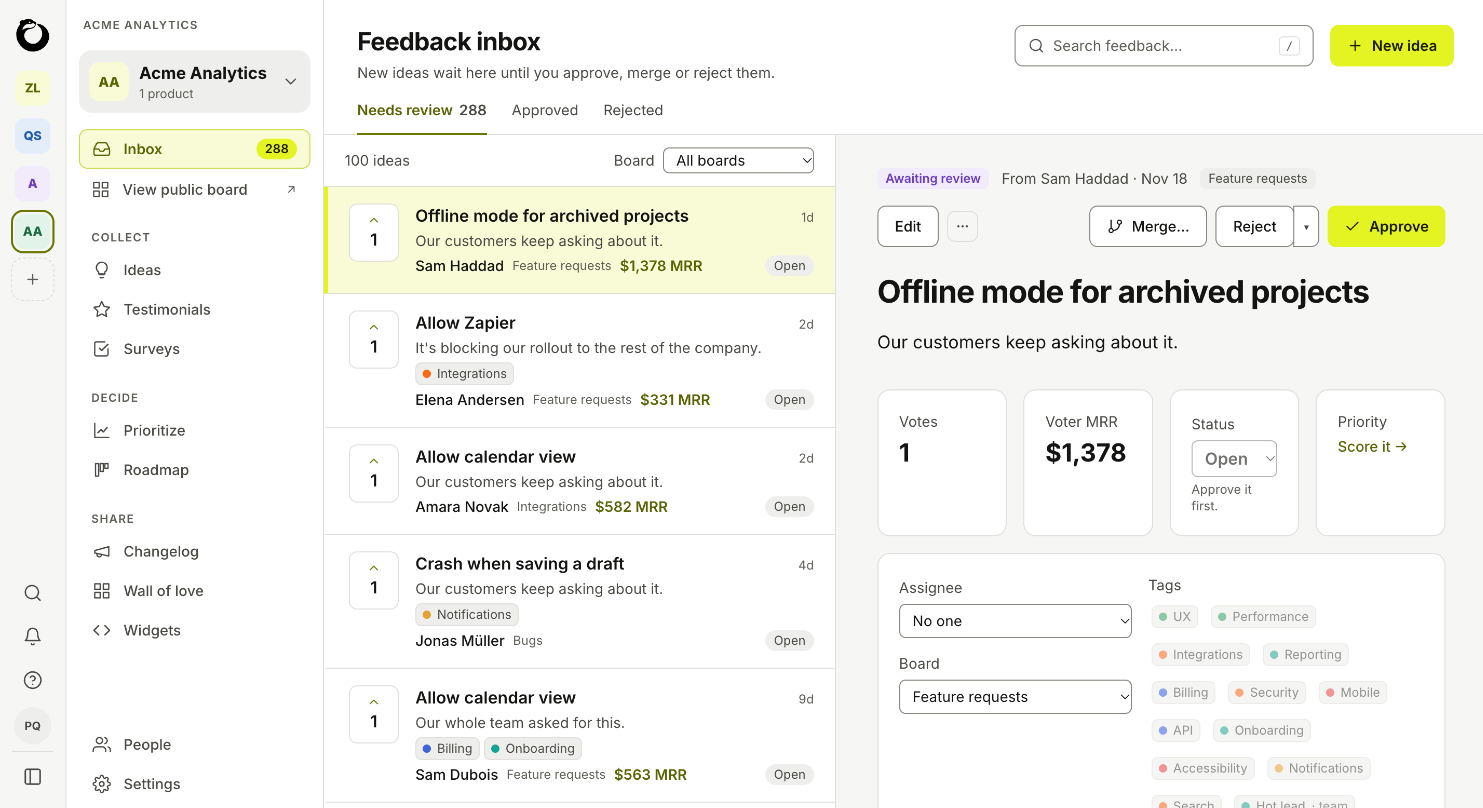
It has three tabs:
| Tab | What’s in it |
|---|---|
| Needs review | New ideas waiting for a decision. |
| Approved | Ideas on the board. |
| Rejected | Ideas you turned down. |
Each idea shows its votes, its board, who posted it and their monthly revenue (MRR).
Revenue comes from the mrr claim in single sign-on.
Shortcuts: j and k move between ideas. / searches.
Use Board above the list to see one board at a time.
Approve
Section titled “Approve”Click Approve. The idea goes on your board, and people can vote on it. The next idea opens, so you can work through the list.
Before you approve, you can fix the idea:
- Edit the title or description.
- Change its Board, Tags or Assignee.
You set its status (Planned, In progress and so on) after you approve it.
Reject
Section titled “Reject”Reject turns an idea down straight away. Click Undo in the message that appears if you change your mind.
To give a reason, click the arrow next to Reject.
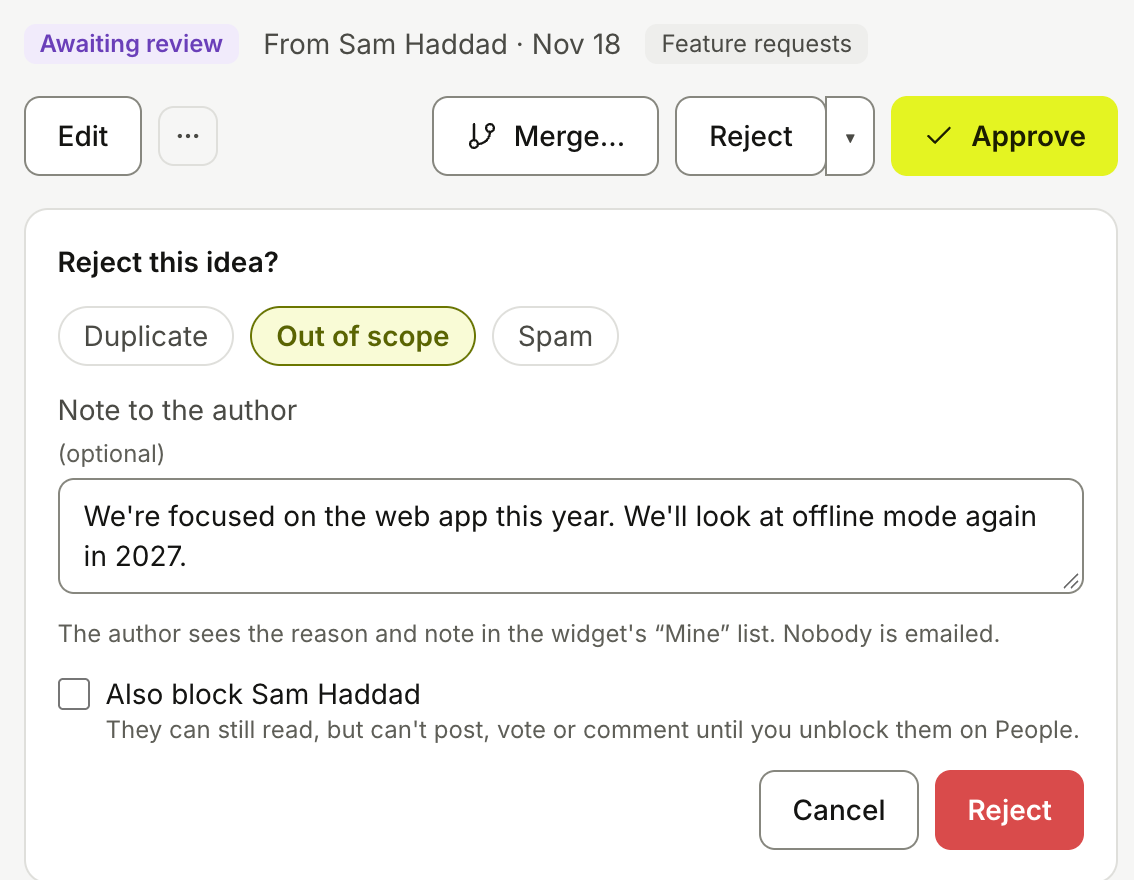
- Reason: Duplicate, Out of scope or Spam.
- Note to the author: up to 280 characters.
The author sees the reason and note in the widget, under Mine. Nobody is emailed.
Block the author
Section titled “Block the author”Tick Also block to stop someone posting spam. Spam ticks it for you.
They can still read your board, but can’t post, vote or comment. To unblock them, go to People.
Change your mind
Section titled “Change your mind”Open the Rejected tab and pick the idea:
- Move back to review puts it back in Needs review.
- Restore and approve puts it on the board.
Merge duplicates
Section titled “Merge duplicates”Users often ask for the same thing in different words. Merge them so the votes are counted together.
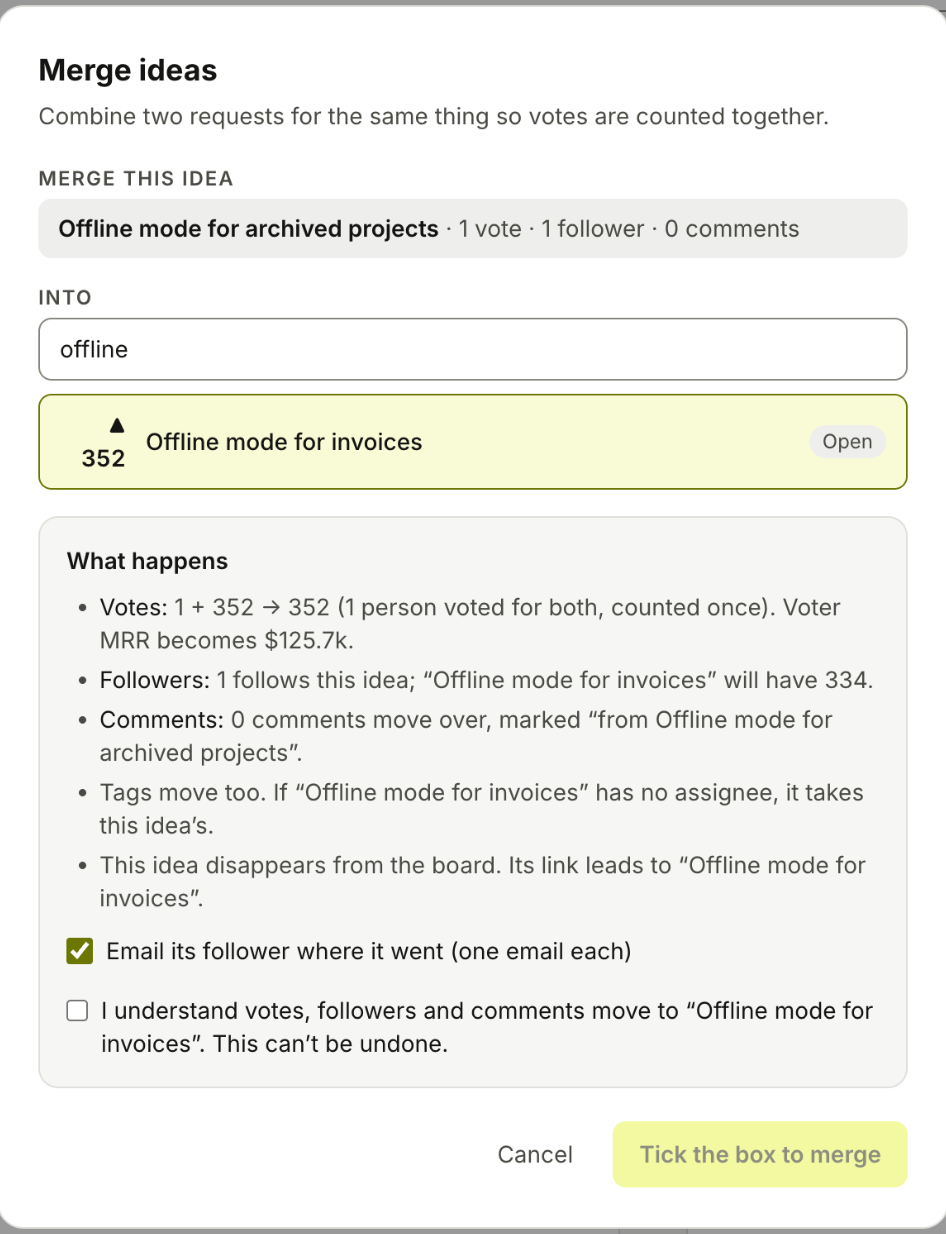
- Open the duplicate and click Merge….
- Search for the idea to keep, and pick it.
- Read What happens, tick the box, then click Merge ideas.
What happens to votes
Section titled “What happens to votes”The idea you keep gets every voter from both ideas. Someone who voted for both still counts once.
For example: 1 vote + 352 votes, where 1 person voted for both, gives 352 votes. Voter revenue is added up the same way.
Everything else
Section titled “Everything else”- Followers move to the idea you keep.
- Comments move, marked “from” the duplicate’s title.
- Tags move too.
- Assignee: if the idea you keep has none, it takes the duplicate’s.
- The duplicate disappears from the board. Its link now opens the idea you keep.
Tick Email its followers to tell them where it went. Each gets one email.
Fewer duplicates to merge
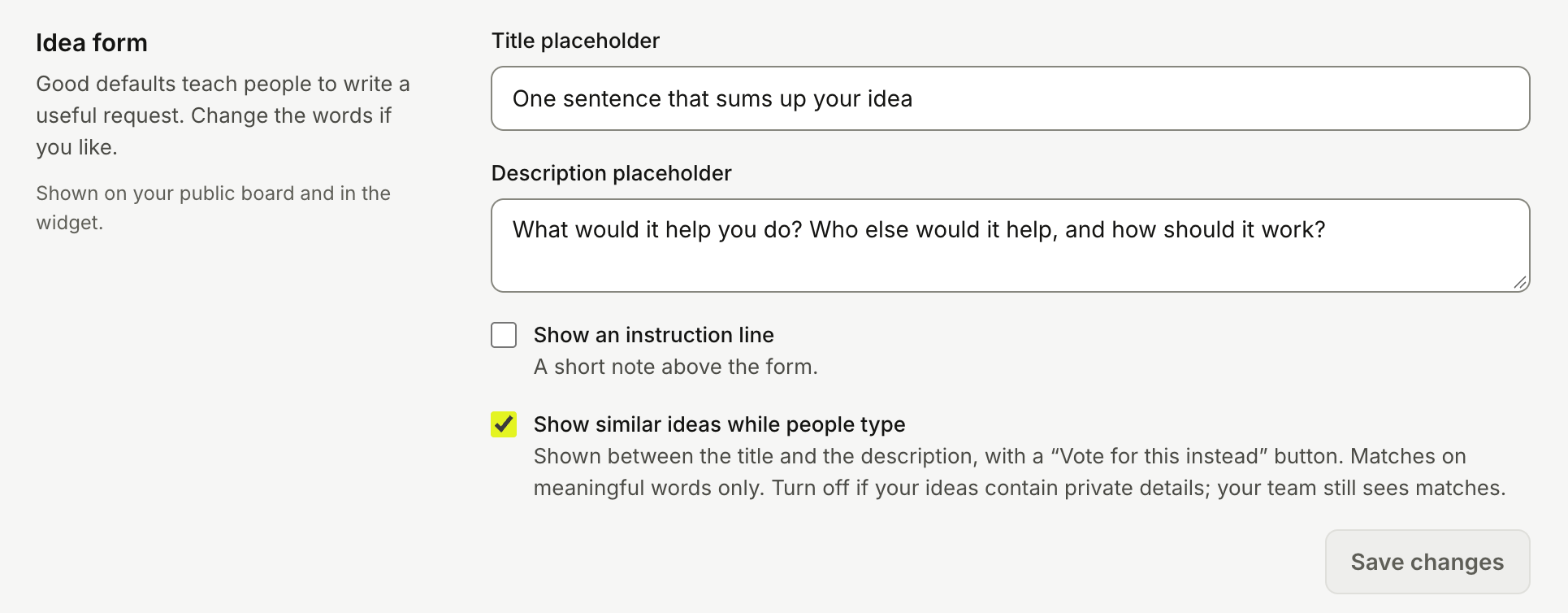
Section titled “Fewer duplicates to merge”When someone types a new idea, we show similar ones under Already asked? Vote for it instead. They can click Vote instead, or Mine is different to carry on posting.
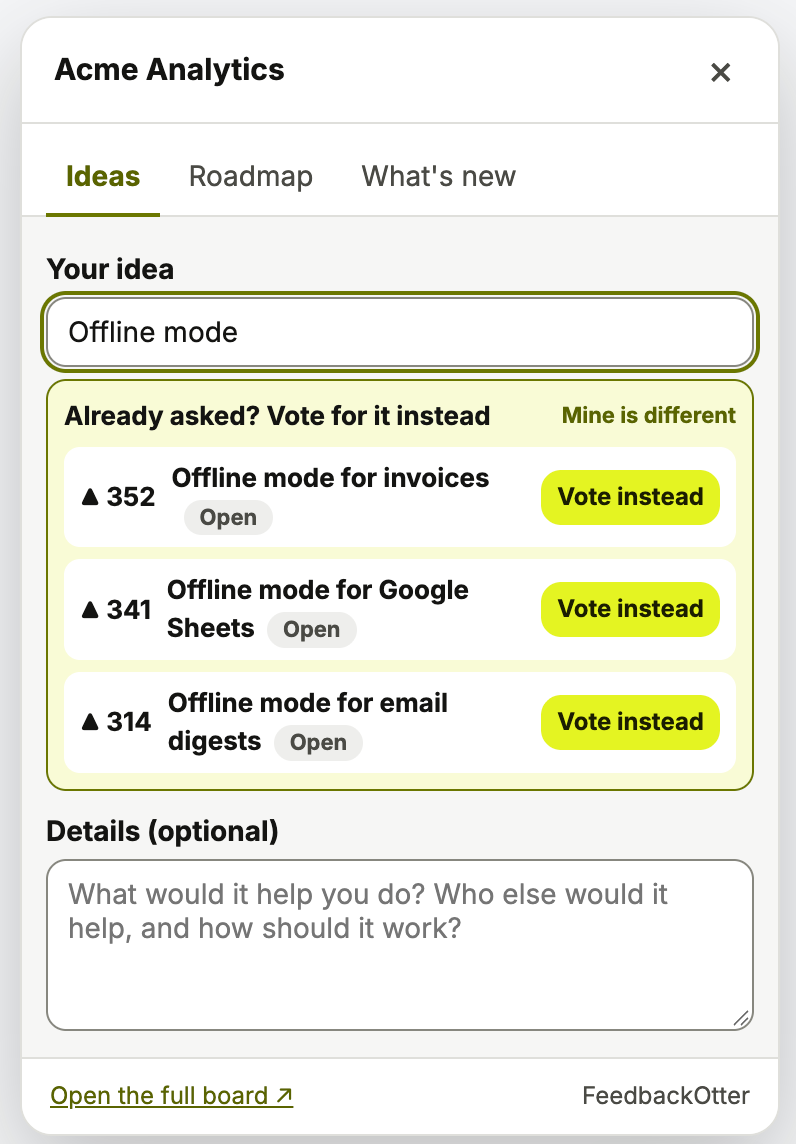
It works in the widget and on your board site, and it’s on by default. To turn it off, go to Ideas → Board settings → Idea form and untick Show similar ideas while people type.
Skip review
Section titled “Skip review”To put ideas on the board straight away, go to Ideas → Board settings → Review. Untick New ideas need review, then click Save changes.

Ideas your team posts always skip review, including ones you post for a customer.
Assign an idea
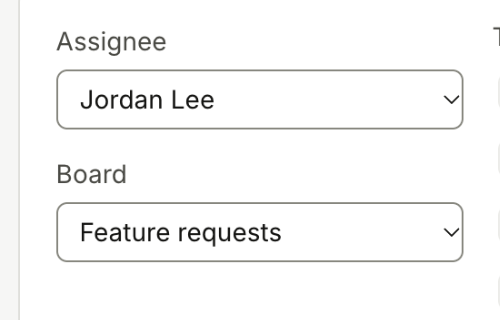
Section titled “Assign an idea”Open the idea and pick a teammate under Assignee to make them responsible for it. If you assign someone else, they get an email.
To see what’s yours, open Ideas and click Assigned to me.