

Surveys
A survey asks one short question inside your app, at the moment you choose. It shows as a small card in the corner, through the widget.
Before you start
Section titled “Before you start”Surveys need two things:
- The widget on your app’s pages. See Install the widget.
- Signed-in users. Surveys only go to people your app signs in. See Single sign-on.
Anonymous visitors never see surveys, so nobody can fake answers.
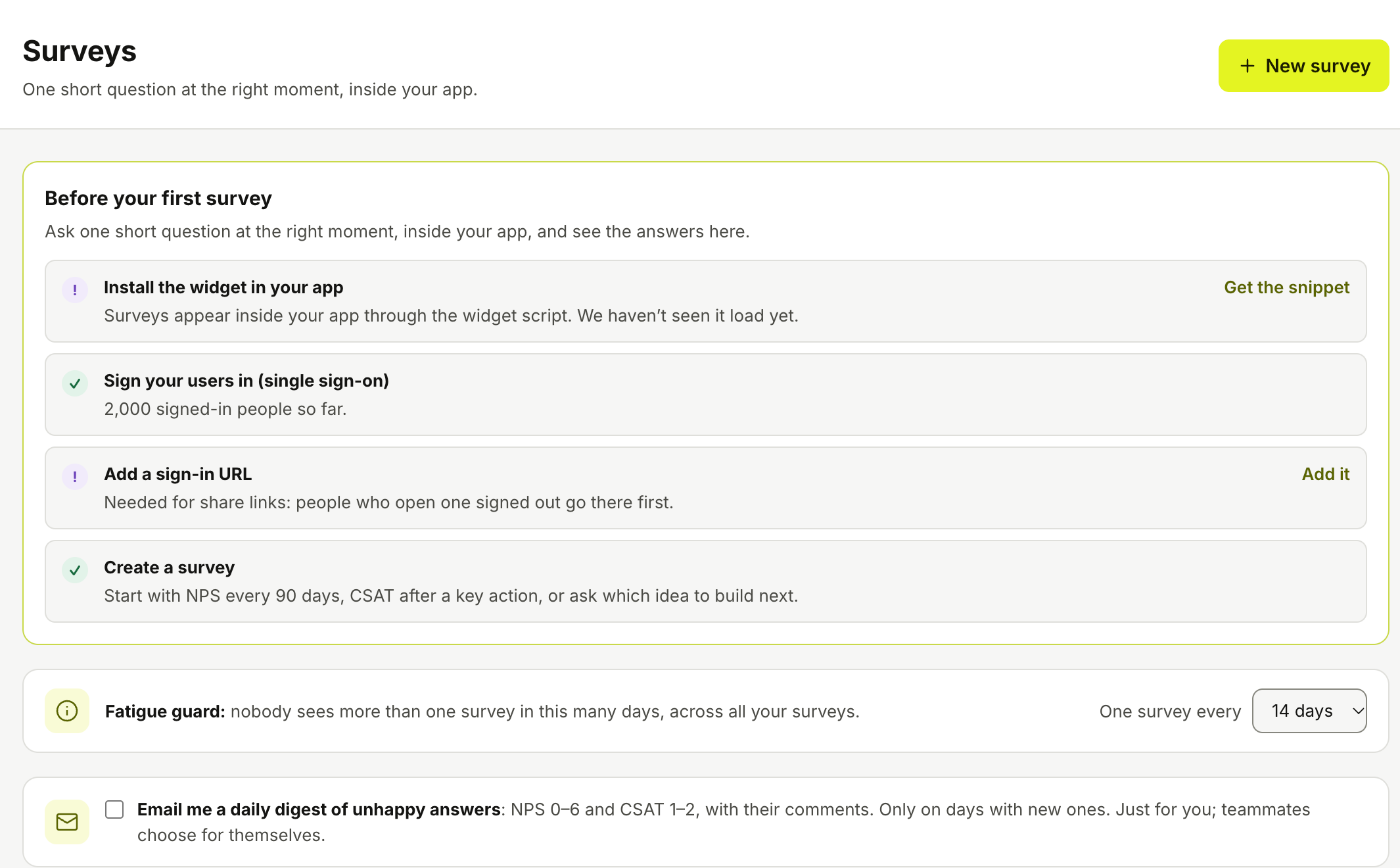
Go to Surveys. The Before your first survey checklist shows what’s missing.
1. Pick a type
Section titled “1. Pick a type”Click New survey and pick what to ask.
| Type | What it asks | Answer |
|---|---|---|
| NPS | How likely people are to recommend you. | 0–10 |
| CSAT | How happy people are with one thing. | 1–5, as numbers, stars or faces |
| Open feedback | One question. | Free text |
| Quick poll | A question with answers you write. | Pick one of 2–6 |
| Idea poll | Which idea to build next, from your board. | Pick one. It counts as a vote. |
Or start from a template, such as NPS every 90 days or CSAT after a key action. Templates fill in every setting. You can change any of them.
2. Write the question
Section titled “2. Write the question”The builder has six sections on the left. The preview on the right is the real card. Click it to try it.
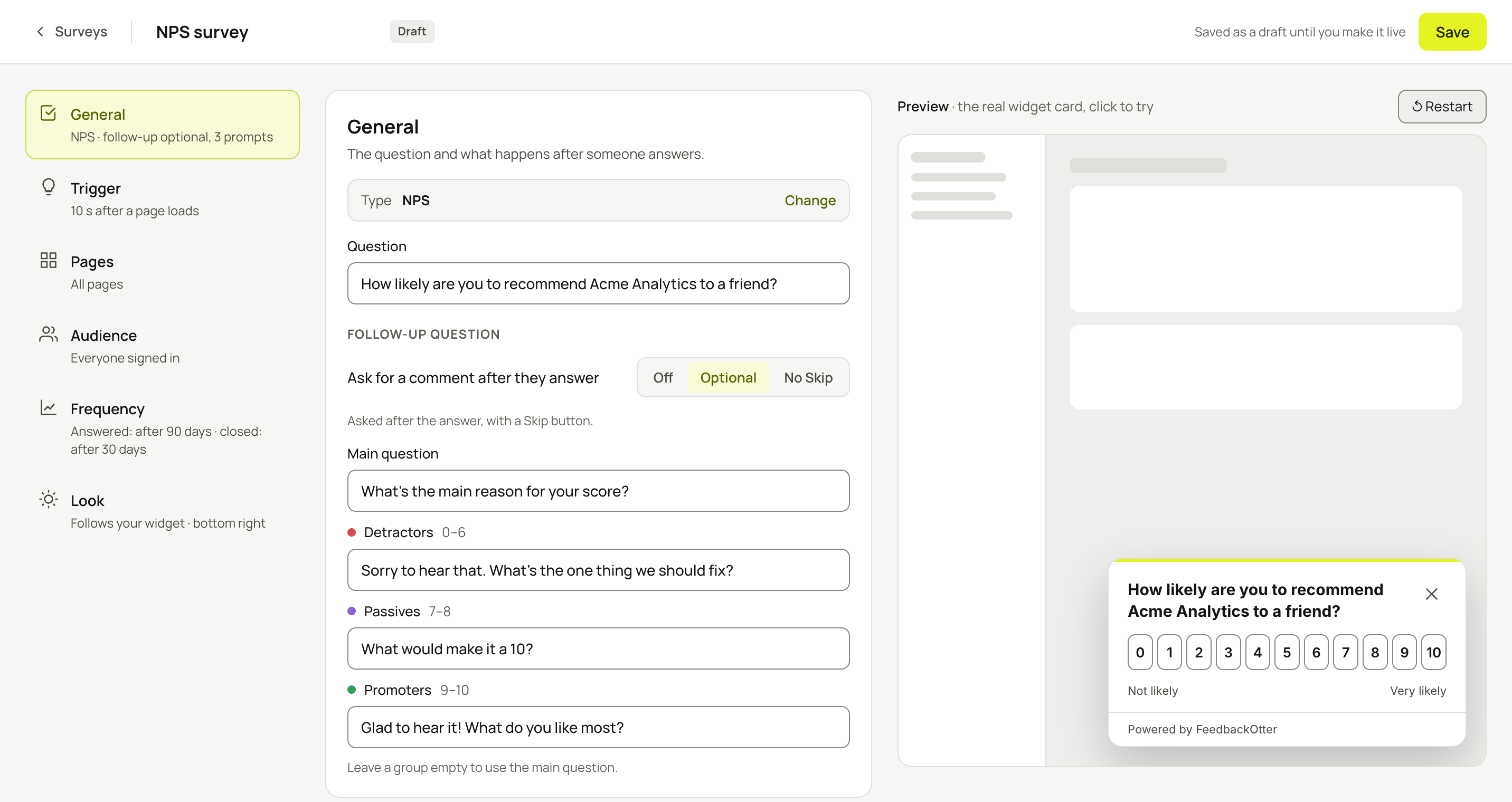
In General, write the question. You can also ask a follow-up question after the answer: off, optional, or required (No Skip).
For NPS and CSAT, the follow-up can change with the score. For example, ask unhappy people what to fix, and happy people what they like.
3. Choose when it shows
Section titled “3. Choose when it shows”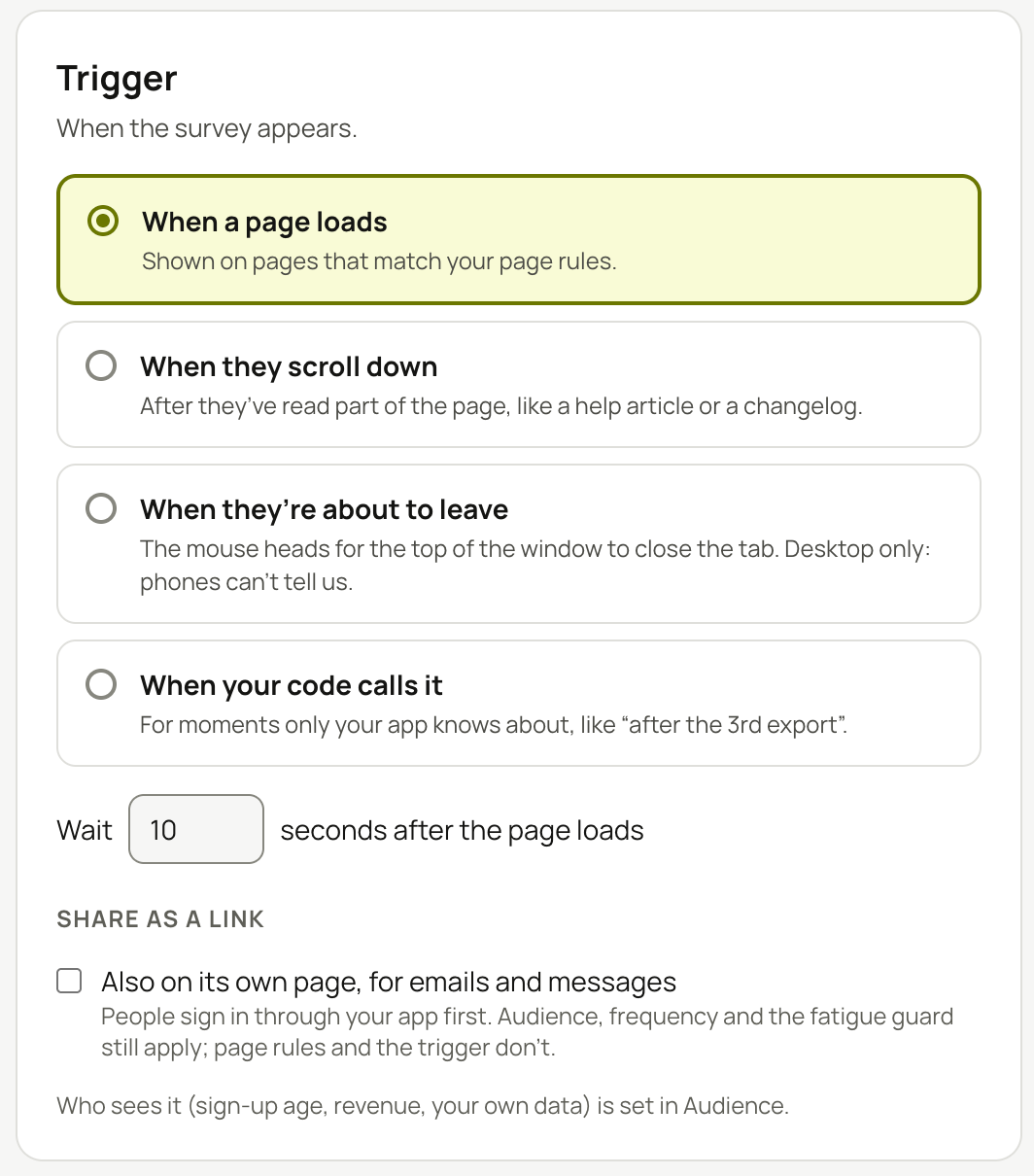
| Trigger | When it shows |
|---|---|
| When a page loads | After a wait you set. 10 seconds by default. |
| When they scroll down | After they’ve scrolled part of the page. 50% by default. |
| When they’re about to leave | When the mouse heads for the top of the window. Desktop only. |
| When your code calls it | When your app calls FeedbackOtter.survey(). |
Show it from your code
Section titled “Show it from your code”Use this for moments only your app knows about, like a finished export.
- Set the trigger to When your code calls it, and save.
- Copy the survey’s ID,
sv_…, from the top of the builder. - Call it at the right moment:
await exportReport();
const result = await FeedbackOtter.survey("sv_abc123def456");if (!result.shown) console.log(result.reason); // e.g. "answered"
Page rules don’t apply here, because your code picks the moment. Every reason it can return is in the Widget JavaScript reference.
Share as a link
Section titled “Share as a link”Tick Also on its own page to get a link you can send in an email or message.
People sign in through your app first, so you need a sign-in URL in Settings → Single sign-on. The audience and frequency rules still apply.
4. Choose the pages
Section titled “4. Choose the pages”In Pages, pick All pages or Only some pages. Then add rules that Show or Hide the survey on a path.
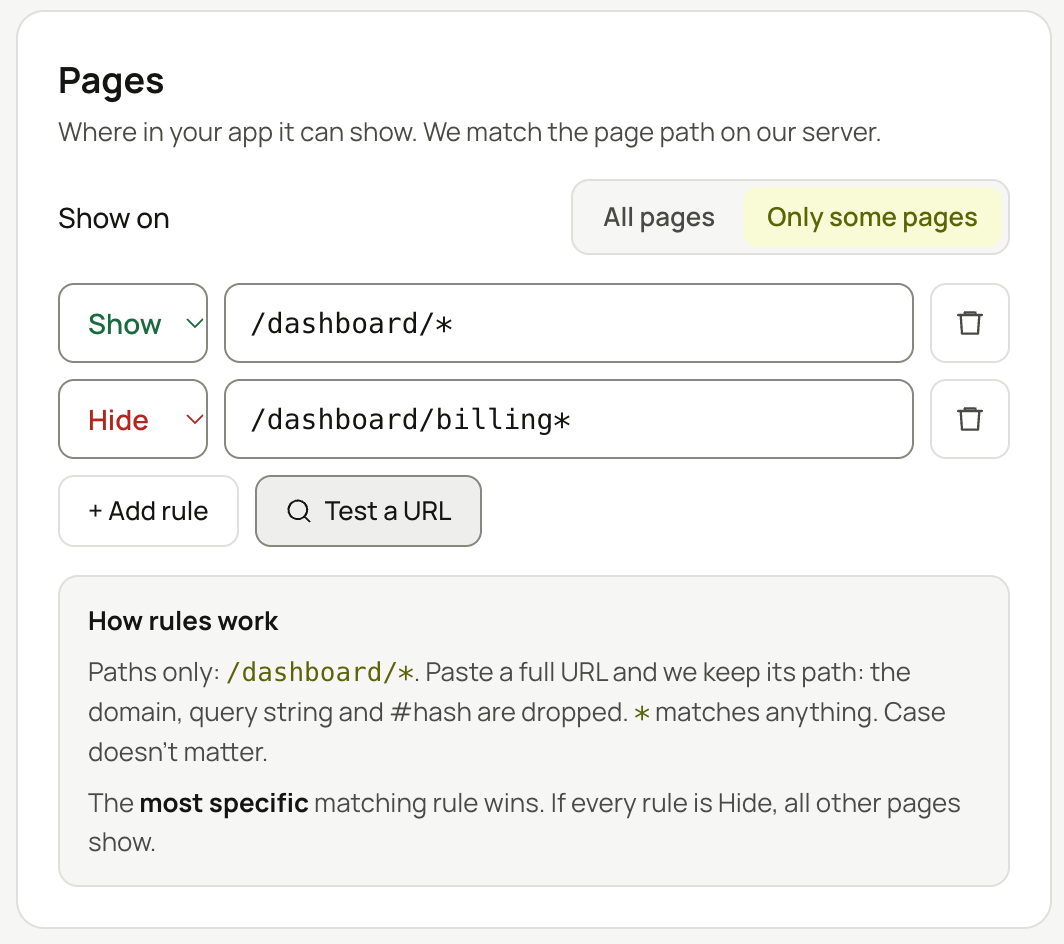
- Rules match the path only, such as
/dashboard/*. A full URL works too: we keep its path. *matches anything. Case doesn’t matter.- The most specific rule wins. Above, the survey shows across the dashboard, but not on billing pages.
- If every rule is Hide, all other pages show it.
Click Test a URL to check a page from your app.
5. Choose who sees it
Section titled “5. Choose who sees it”In Audience, narrow it down. Leave it alone to ask everyone who’s signed in.
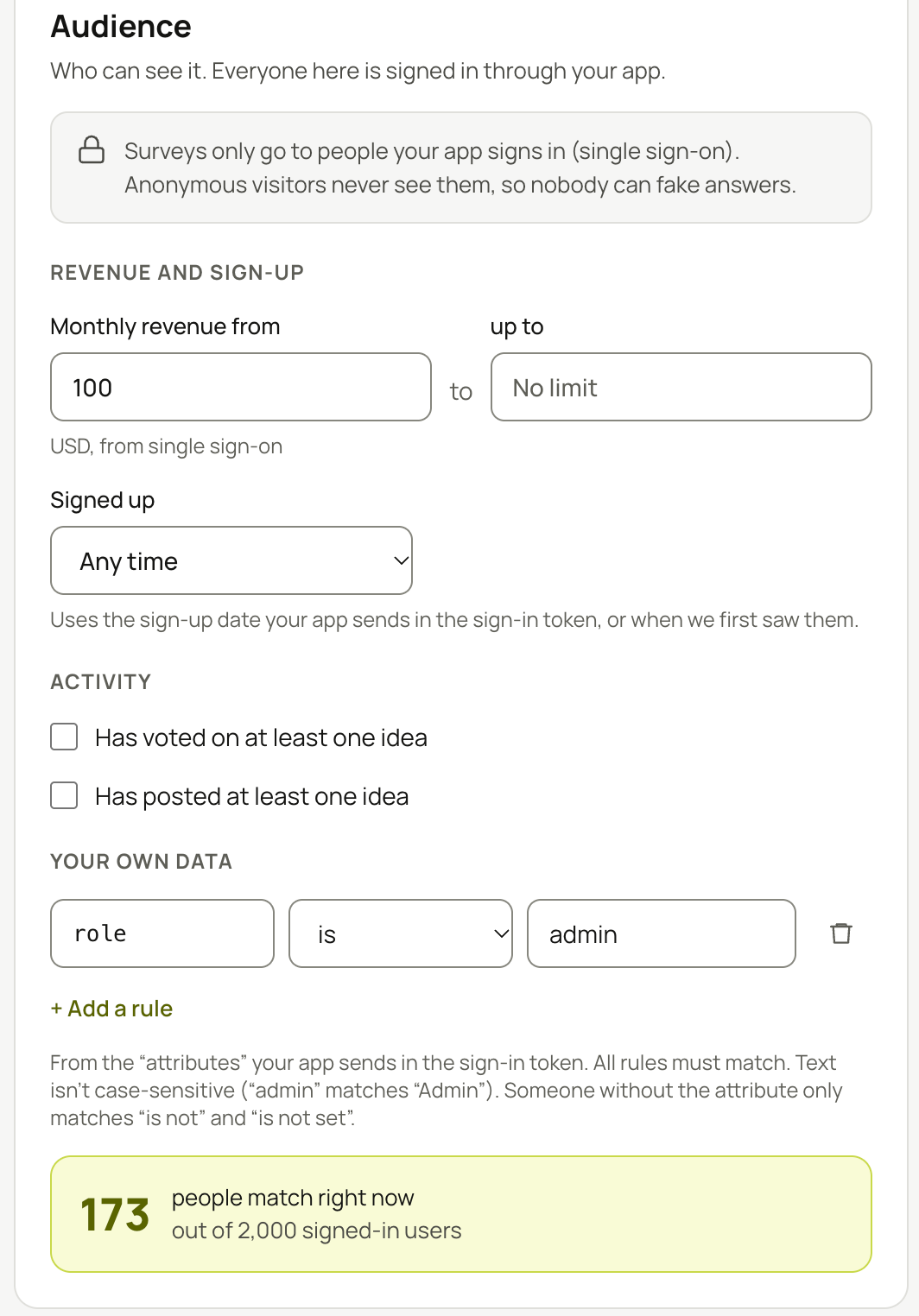
| Filter | Comes from |
|---|---|
| Monthly revenue | The mrr claim in the sign-in token, in USD. |
| Signed up | The signed_up_at claim, or when we first saw them. |
| Has voted / Has posted | What they’ve done on your board. |
| Your own data | The attributes claim, such as role or plan. Up to 10 rules. |
The box at the bottom shows how many people match right now.
Send these fields when you sign the token. See Single sign-on → Build the token.
6. Choose how often
Section titled “6. Choose how often”In Frequency, decide what happens after someone answers, and after someone closes it without answering:
- Never show it again, or
- Ask again after a number of days.
NPS asks again after 90 days by default. Other types ask once.
The fatigue guard
Section titled “The fatigue guard”Nobody sees more than one survey every 14 days, across all your surveys. Change it to 7 or 30 days at the top of the Surveys page.
7. Go live
Section titled “7. Go live”Click Save. A new survey is saved as a draft. Then click Go live. It starts showing straight away.
Pause stops it. Resume starts it again.
See the answers
Section titled “See the answers”Open a survey to see views, responses, the response rate and the score, week by week.
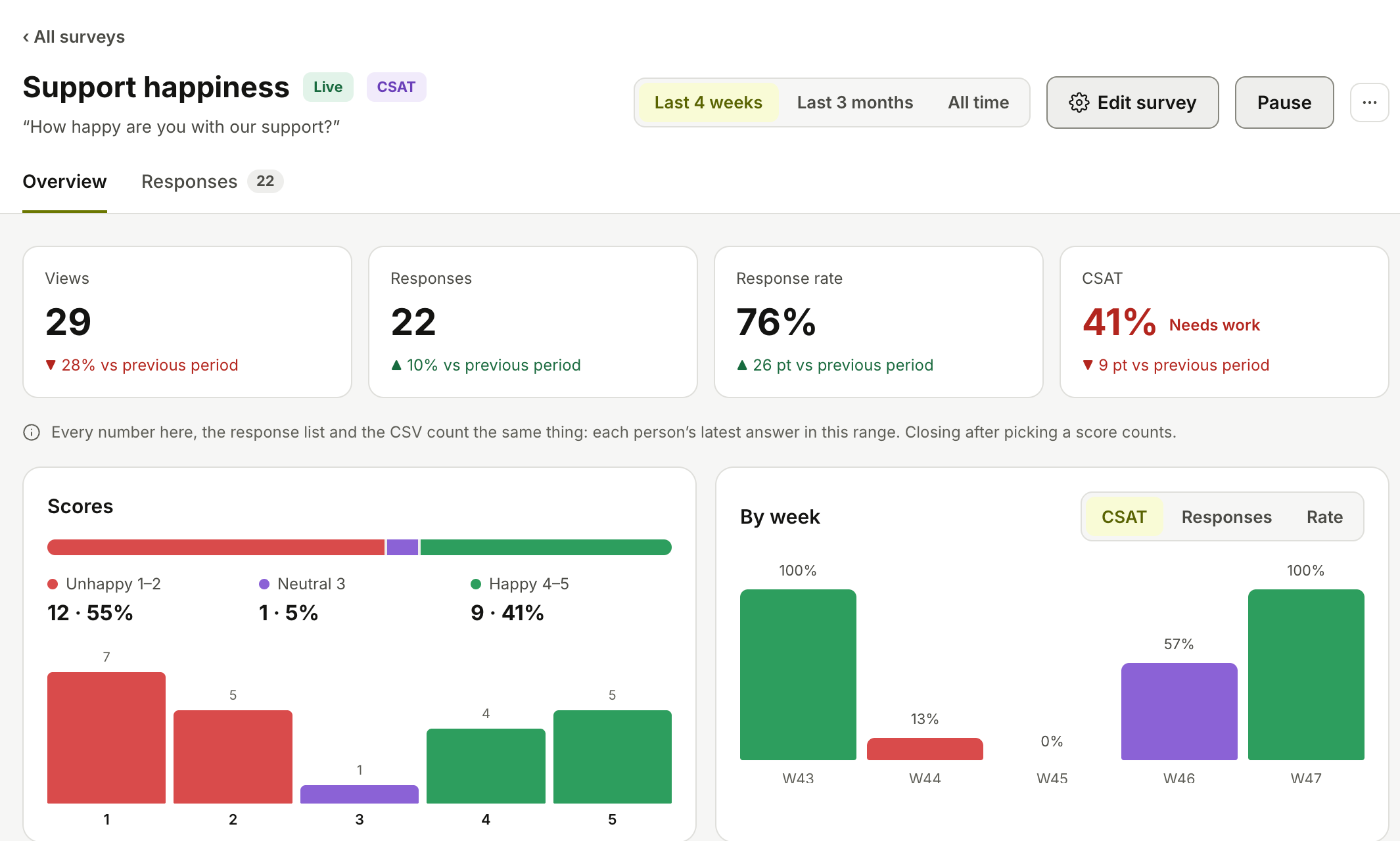
The Responses tab lists every answer and comment.
To hear about unhappy answers, tick Email me a daily digest of unhappy answers on the Surveys page. It covers NPS 0–6 and CSAT 1–2, and only sends on days with new ones.
Why didn’t someone see it?
Section titled “Why didn’t someone see it?”Open the survey, click ⋯, then Why didn’t someone see it?. Pick a person and a page. You get the same answer the widget gets.
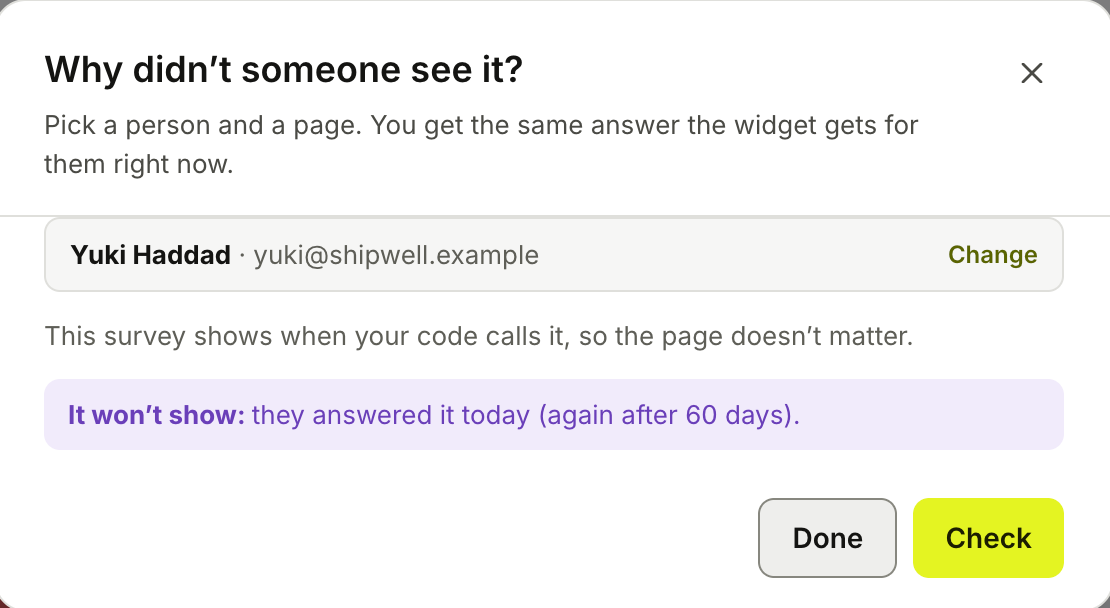
The usual reasons:
| Reason | Fix |
|---|---|
| Nobody is signed in | Pass a token to the widget. |
| It’s a draft or paused | Click Go live. |
| The page rules don’t include the page | Check Pages, or click Test a URL. |
| They aren’t in its audience | Check Audience, and the claims your token sends. |
| They answered it, or closed it | Check Frequency. |
| They saw a survey recently | The fatigue guard. Wait, or shorten it. |
You can also see this on a person’s page in People, under Surveys.
Check in the browser
Section titled “Check in the browser”While you build, set debug: true in the widget’s init:
FeedbackOtter.init({ publicKey: "pk_…", token, debug: true });The console then says why each survey did or didn’t show on the page:
[FeedbackOtter] Survey sv_abc123def456 not shown: answered survey sv_q8m2k4x7p1z9 3 days ago (fatigue guard: one survey every 14 days)