
Changelog
The changelog tells people what shipped. Link the ideas an entry delivers, and everyone who voted for them gets an email.
That’s how you close the loop: a customer asks, votes, and hears back when it’s live.
Your changelog
Section titled “Your changelog”Click Changelog in the sidebar.
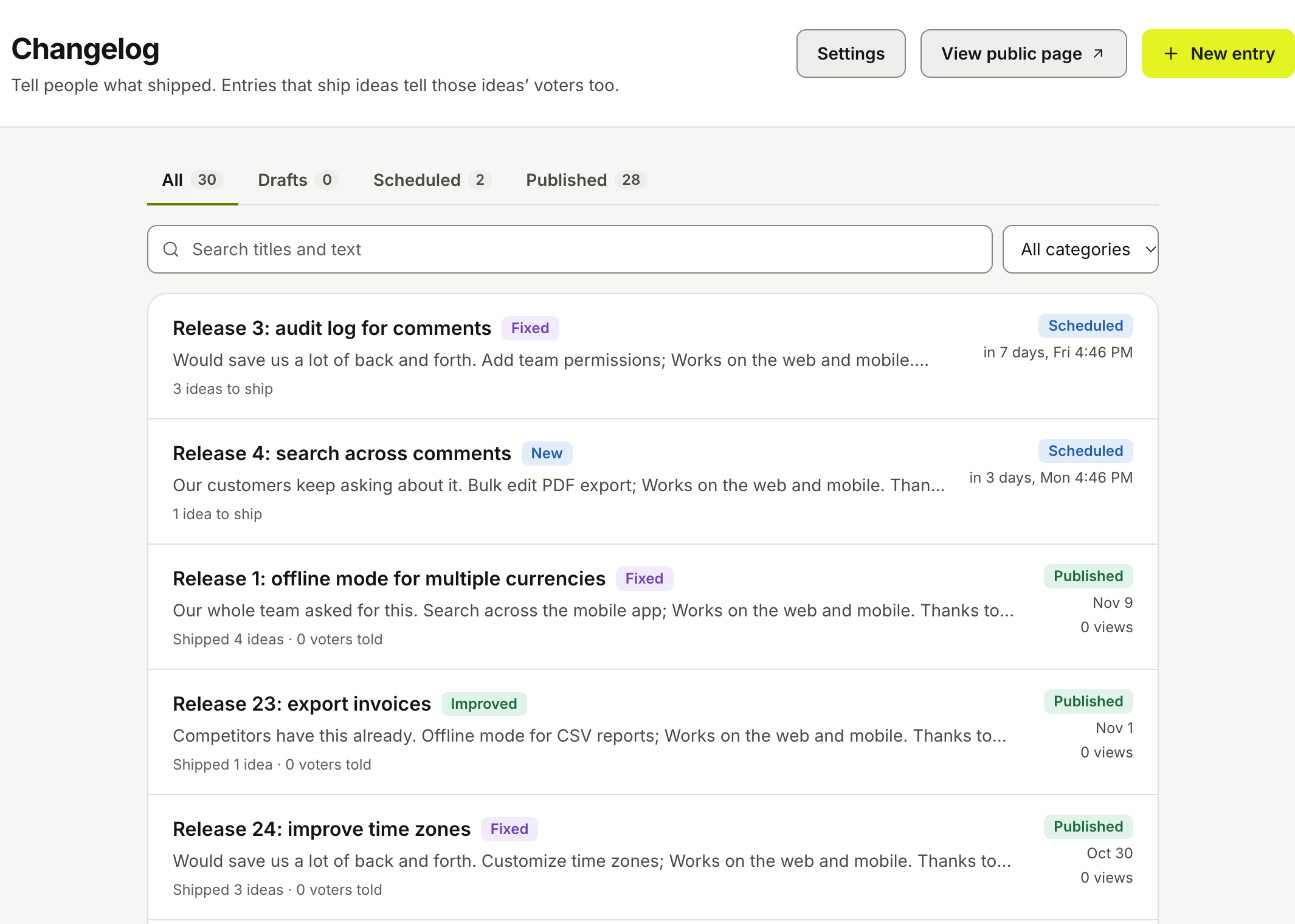
Each entry shows its status, how many ideas it ships, how many voters were told, and its views. Views are counted without cookies or personal data.
Write an entry
Section titled “Write an entry”Click New entry.
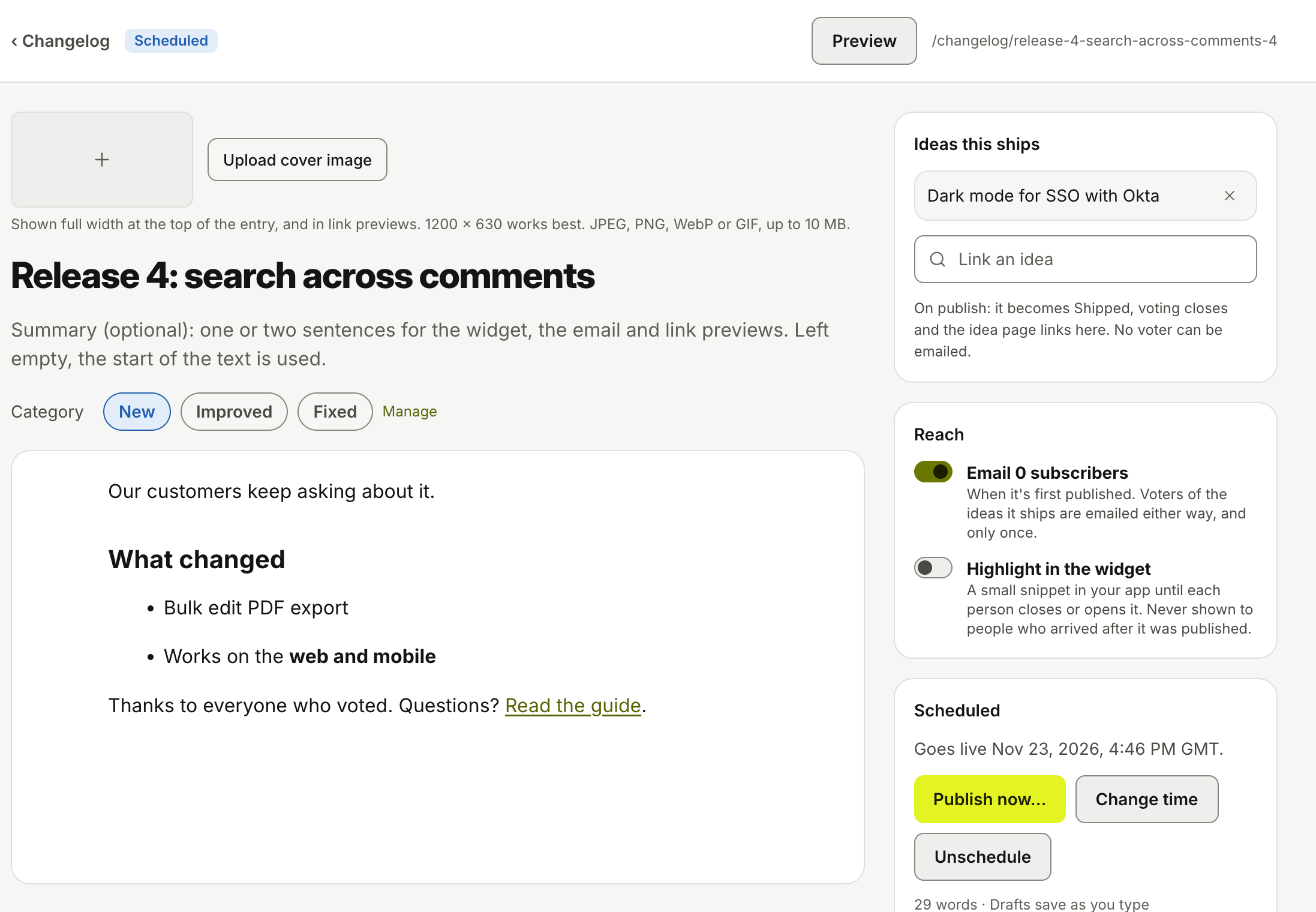
- Add a title and the text. Drafts save as you type.
- Pick a category: New, Improved or Fixed. Readers filter by them.
- Optional: a summary for the widget, the email and link previews, and a cover image (1200 × 630 works best).
Click Preview to see it as readers will.
Link the ideas it ships
Section titled “Link the ideas it ships”Under Ideas this ships, search for each idea this entry delivers.
When you publish:
- Each linked idea becomes Shipped, and voting on it closes.
- Each idea’s page links to the entry.
- Every voter gets one email saying it’s live.
Nobody is told twice about the same idea. Ideas that are already shipped email nobody.
Publish
Section titled “Publish”Click Publish…. First you see exactly what will happen: which ideas ship, how many people get an email, and a sample of the email. Nothing is sent until you confirm.
Or click Schedule… to pick a time, up to a year ahead, then Review…. It goes live on its own within five minutes of that time. You can still edit it, or Change time, until then.
Unpublish or delete
Section titled “Unpublish or delete”Unpublish takes an entry off the changelog. Its ideas stay shipped, and nobody is emailed.
Delete removes it for good, including its public page and RSS item.
Who hears about it
Section titled “Who hears about it”| Who | How |
|---|---|
| Voters of linked ideas | One email each, always. |
| Subscribers | One email, if Email subscribers is on for the entry. |
| People in your app | The unread badge and What’s new in the widget. |
| Anyone | Your public changelog page and its RSS feed. |
Subscribers
Section titled “Subscribers”Signed-in users can subscribe on the changelog page or in the widget. Anyone can unsubscribe from any email.
Each entry has its own Email subscribers switch. To change whether it starts on, go to Changelog → Settings → Subscribers.
In your app
Section titled “In your app”The widget’s What’s new tab shows your entries. The Feedback button shows a badge for entries the person hasn’t seen.
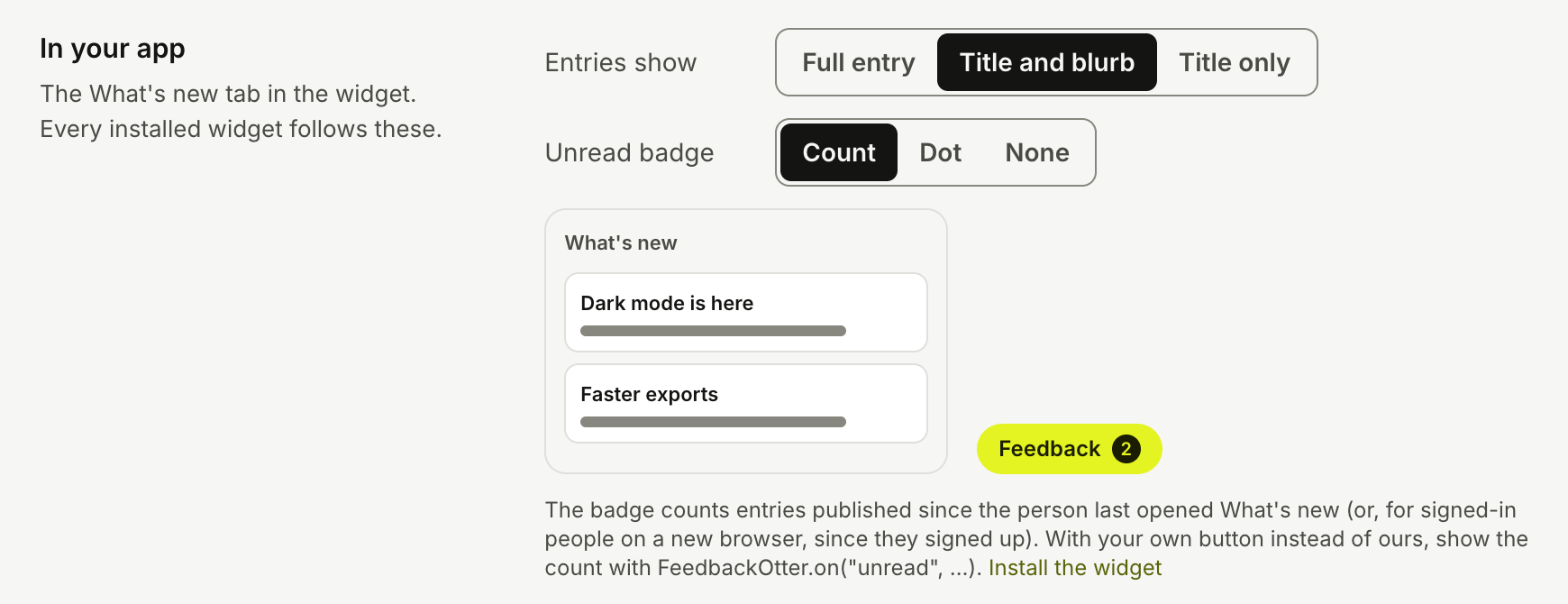
Change both in Changelog → Settings → In your app:
- Entries show: the full entry, the title and blurb, or the title only.
- Unread badge: a count, a dot, or none.
The badge counts entries published since the person last opened What’s new. With unread entries, the Feedback button opens straight on What’s new.
Using your own button? Show the count with FeedbackOtter.on("unread", fn).
Highlights
Section titled “Highlights”Turn on Highlight in the widget for a big release. A small snippet then shows in your app until each person closes or opens it.
- It ends at a date you pick, or when you highlight the next entry.
- It never shows to people who arrived after it was published.
Your public changelog
Section titled “Your public changelog”Click View public page.
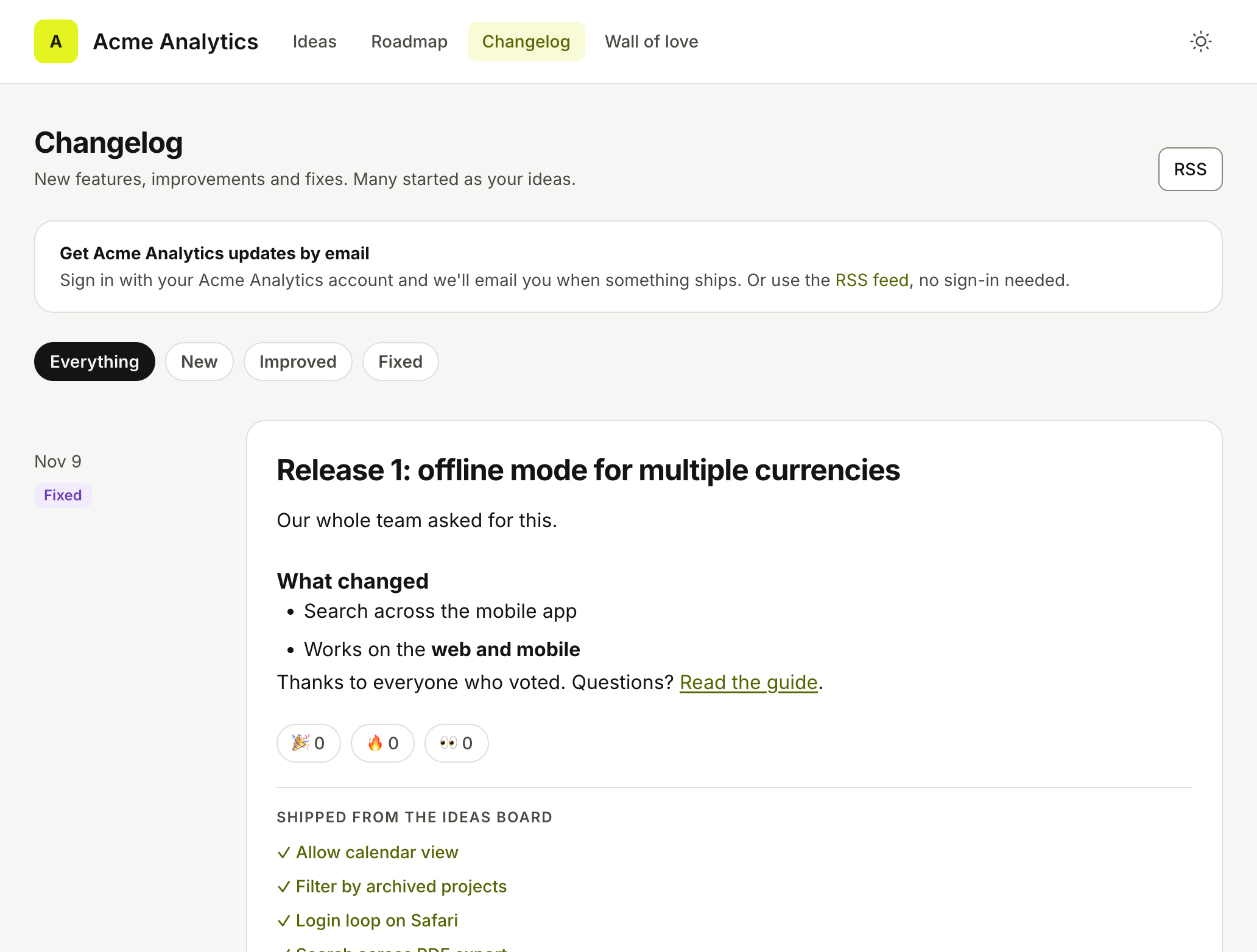
Readers can filter by category, react with an emoji, and see which ideas each entry shipped.
The RSS feed is at /changelog/rss.xml on your board address, such as acme.feedbackotter.app/changelog/rss.xml.
Settings
Section titled “Settings”Click Settings on the Changelog page.
| Section | What you can change |
|---|---|
| Categories | Rename, recolour, reorder or add categories. |
| Subscribers | Allow subscribing, and whether new entries email subscribers. |
| Reactions | Turn them on or off, and pick up to 5 emoji. |
| In your app | What What’s new shows, and the unread badge. |
| Highlights | How highlights work. |
| RSS feed | Your feed’s address. |