
Boards and tags
Boards split feedback by kind, such as feature requests and bugs. Every idea sits on exactly one board.
Tags label ideas across all boards, such as “Billing” or “Mobile”. An idea can have several.
Find the settings
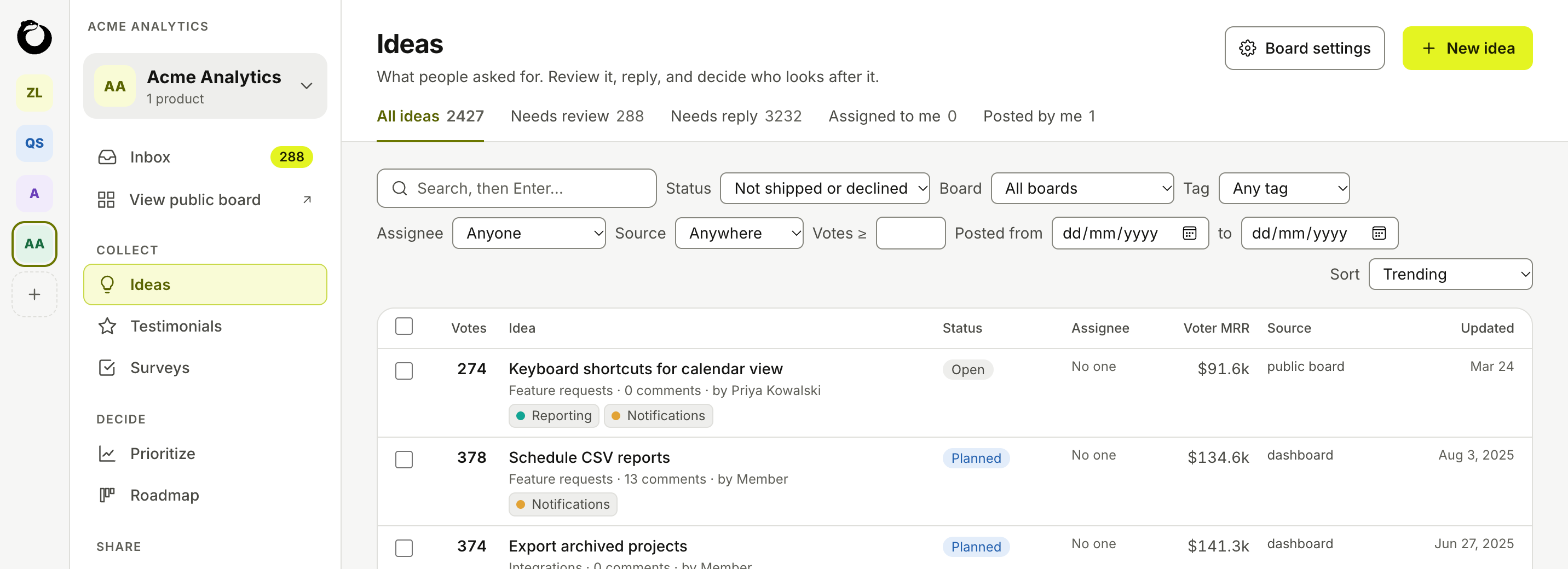
Section titled “Find the settings”- In the dashboard sidebar, click Ideas.
- Click Board settings at the top right.
- Scroll to Boards or Tags.
Boards
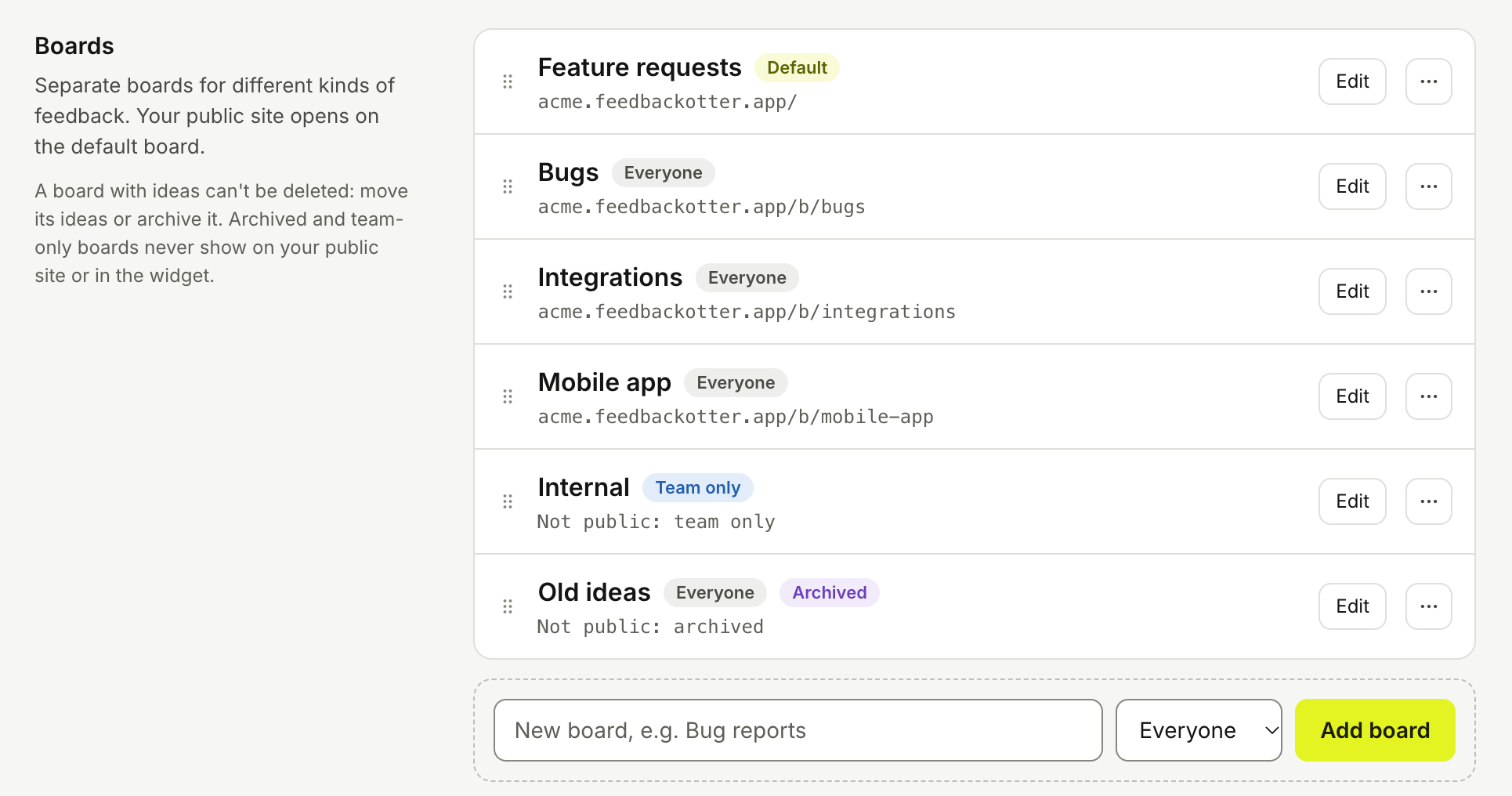
Section titled “Boards”Each product starts with one board, Feature requests. Add more when one kind of feedback starts to crowd out another.
Add a board
Section titled “Add a board”Type a name and pick who can see it, then click Add board.
The board gets its own address, such as acme.feedbackotter.app/b/bugs.
Click Edit to change its name, URL, description or who can see it.
Who can see a board
Section titled “Who can see a board”| Setting | Who sees it |
|---|---|
| Everyone | Your users, on your board site and in the widget. |
| Team only | Only your team, in the dashboard. |
Use a Team only board for internal ideas, or ideas you aren’t ready to share.
The default board
Section titled “The default board”Your board site opens on the default board. New ideas go there unless someone picks another board.
To change it, open a board’s ⋯ menu and click Make default.
Drag boards by the handle, or use Move up and Move down in the ⋯ menu. Your users see them in this order.
Archive or delete
Section titled “Archive or delete”Archive hides a board from your users and stops new ideas and votes. Its ideas stay in the dashboard. Unarchive brings it back.
Delete only works on an empty board. Move its ideas to another board first, or archive it instead.
You can’t archive or delete the default board. Make another board the default first.
Move an idea to another board
Section titled “Move an idea to another board”Open the idea in the Inbox or Ideas, then change Board.
Show one board in the widget
Section titled “Show one board in the widget”The widget shows the default board. To show another, pick it in Widgets → Feedback widget → Board. Or set it in code:
FeedbackOtter.init({ publicKey: "pk_…", board: "bugs" });See the Widget JavaScript reference.
Your public board
Section titled “Your public board”Users switch boards at the top of your board site. They can also filter by status and by tag.
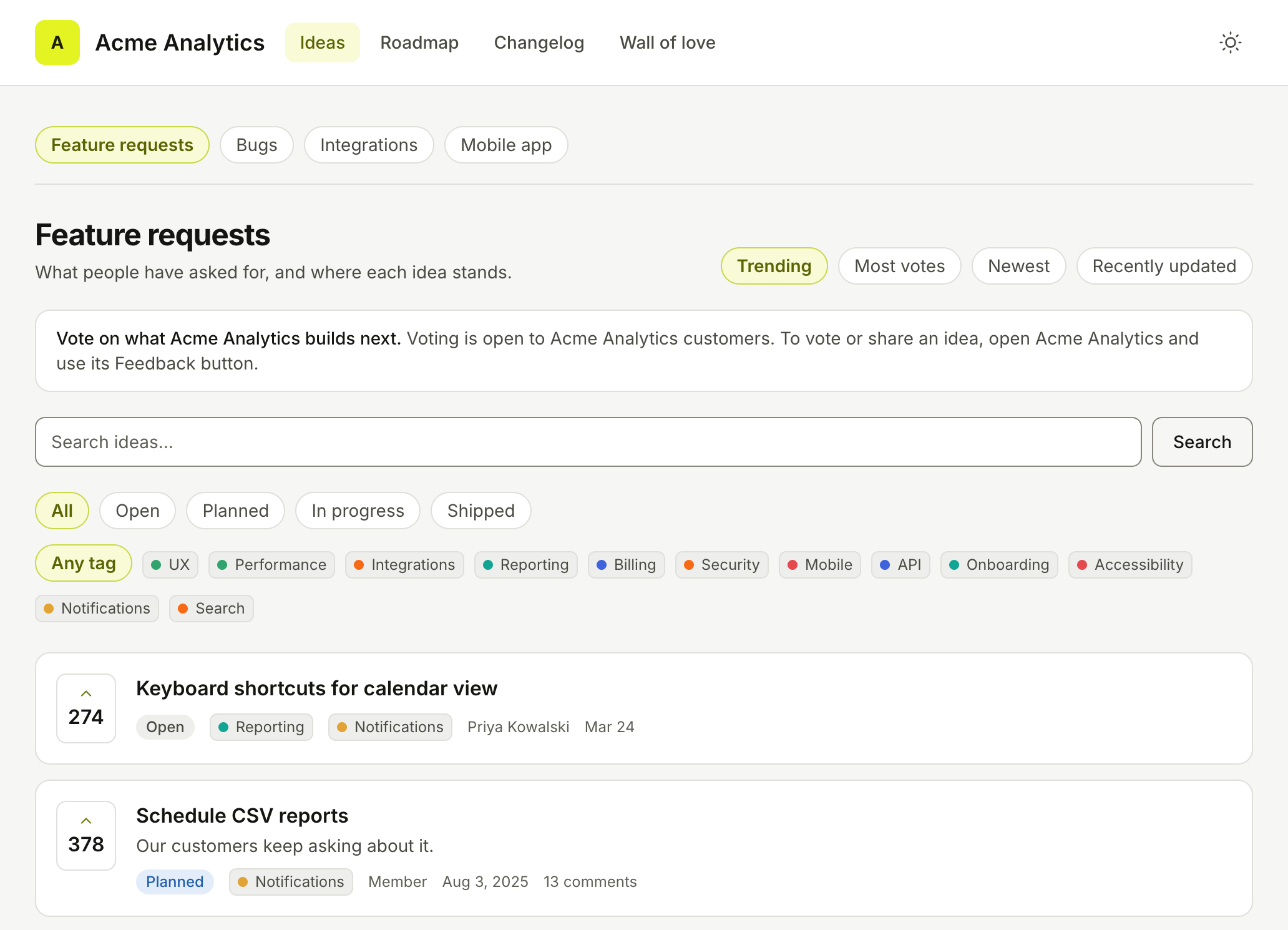
Team only and archived boards never appear here.
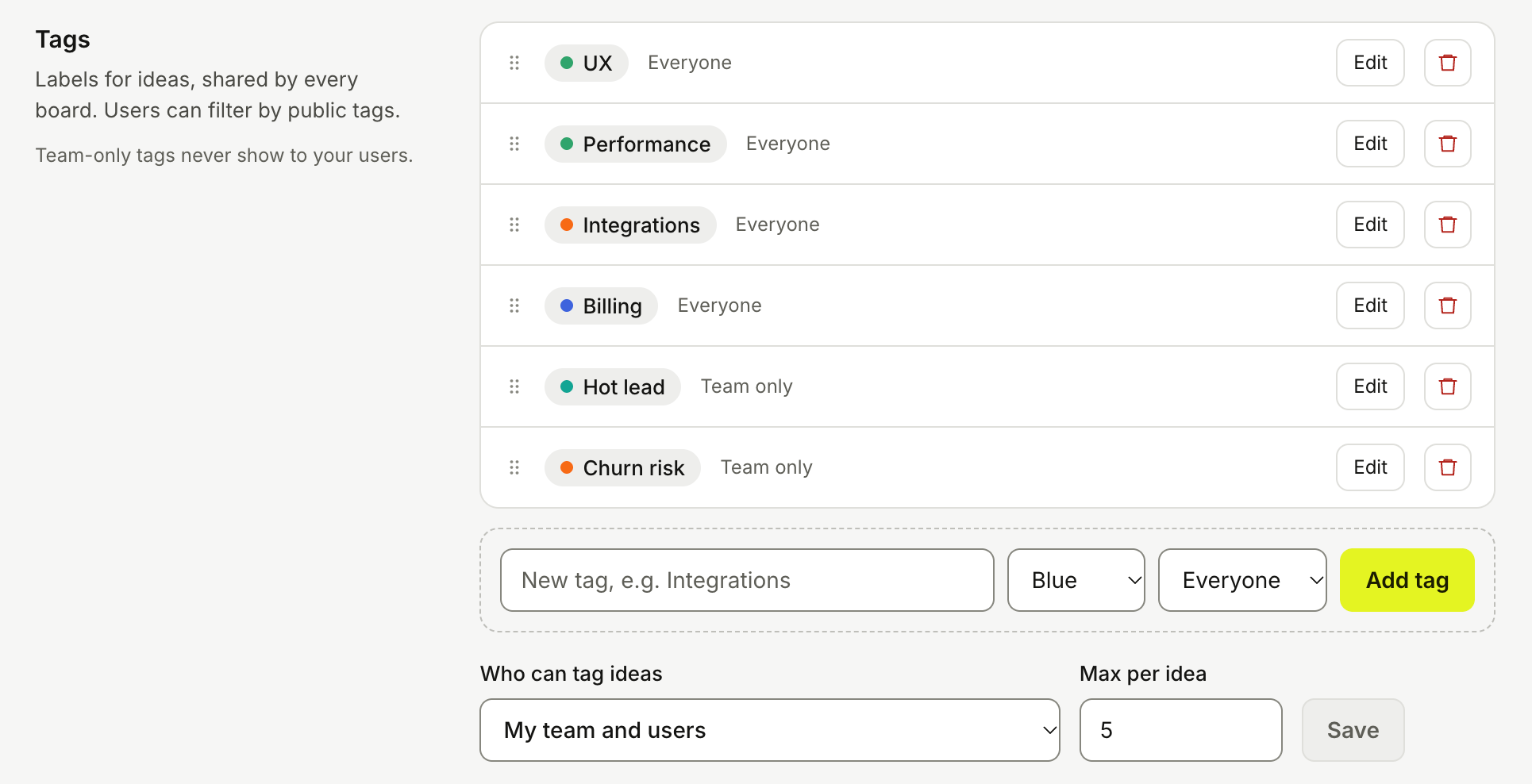
Tags are shared by every board. Use them for product areas, customer types, or anything else you want to filter by.
Add a tag
Section titled “Add a tag”Type a name, pick a colour and who can see it, then click Add tag. Drag tags to change their order.
Who can see a tag
Section titled “Who can see a tag”| Setting | Who sees it |
|---|---|
| Everyone | Your users see it on ideas and can filter by it. |
| Team only | Only your team. Good for notes like “Hot lead” or “Churn risk”. |
Who can tag ideas
Section titled “Who can tag ideas”| Setting | What happens |
|---|---|
| Only my team | Only your team adds tags, from the dashboard. |
| My team and users | Users can also pick public tags when they post an idea. |
Max per idea sets how many tags one idea can have, from 1 to 10.
Tag an idea
Section titled “Tag an idea”Open the idea in the Inbox or Ideas and click tags under Tags.
When you merge two ideas, the tags move to the idea you keep. See Reviewing ideas.