

Approve and publish
A testimonial only goes public when all three of these are true:
- The author gave permission. They ticked the box on the form, or you confirmed they said yes.
- They rated you 4 or 5. Ratings of 3 or lower are private feedback, always.
- Your team put it on the wall. Approving alone doesn’t publish it.
We check all three every time, on the server and in the database. There’s no setting or shortcut that skips them.
Review new testimonials
Section titled “Review new testimonials”Go to Testimonials → To review.
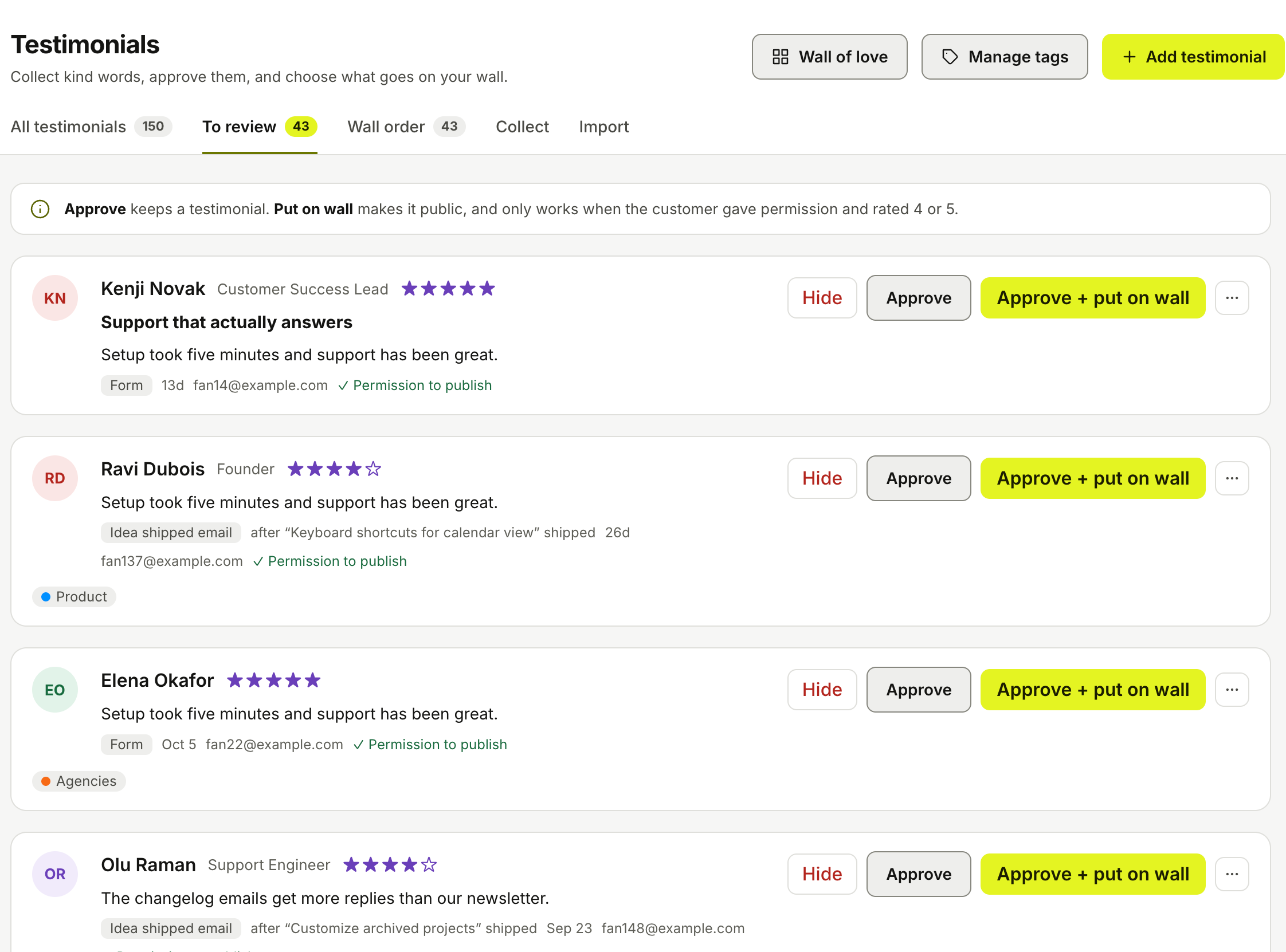
Each one shows the rating, where it came from, and whether they gave Permission to publish.
| Button | What it does |
|---|---|
| Approve + put on wall | Keeps it and makes it public. |
| Approve | Keeps it, but doesn’t publish it. You can put it on the wall later. |
| Hide | Takes it out of your list. Unhide brings it back. |
If the author didn’t give permission, or rated 3 or lower, the card says why with a lock. Approve + put on wall isn’t offered, and Approve becomes Keep as private feedback.
All testimonials
Section titled “All testimonials”Go to Testimonials → All testimonials to see everything, with filters.
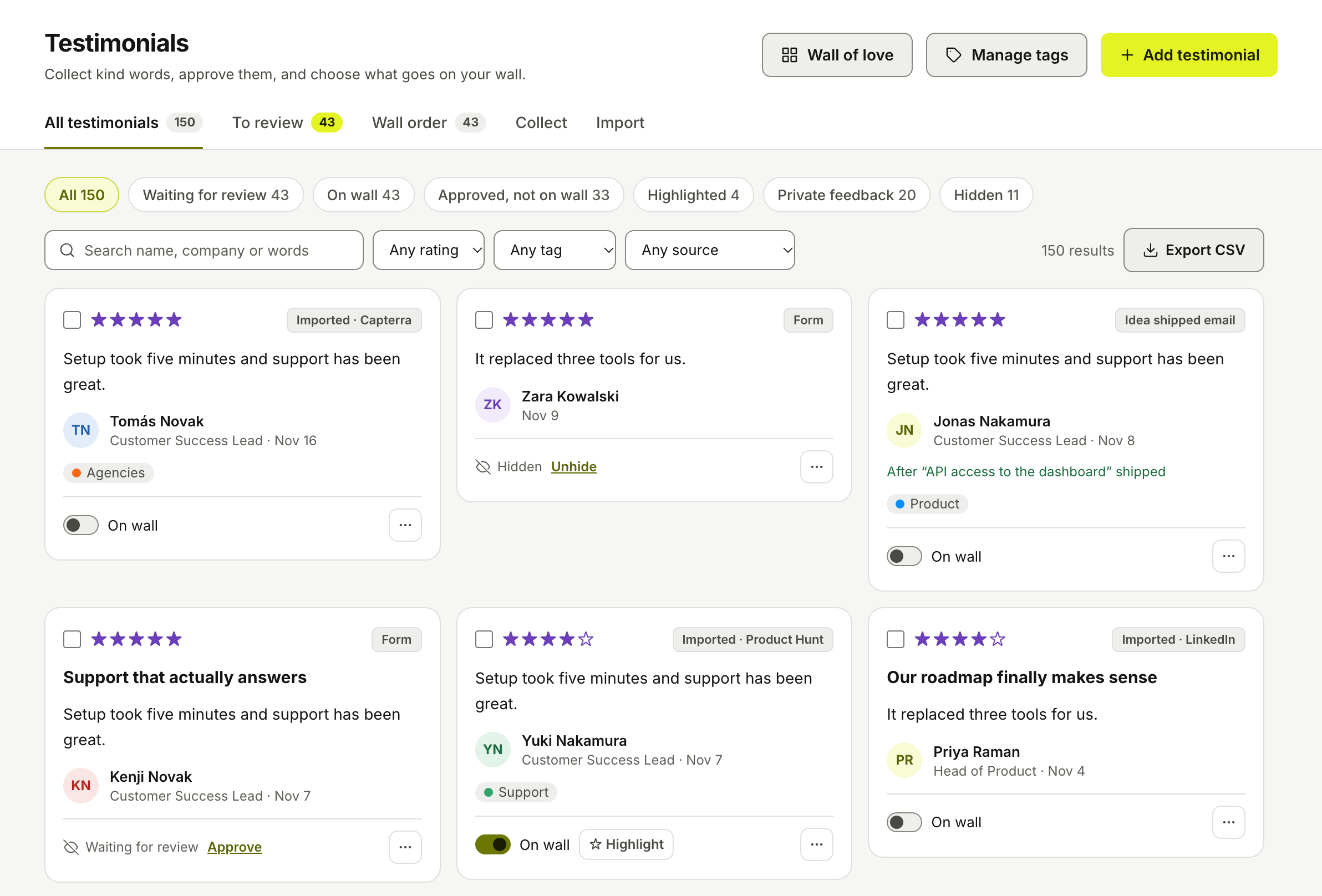
- On wall: the switch on each card. Turn it off to take one down straight away. Turn it back on, and it goes back to the same place.
- Highlight: marks it Featured on your wall. Place it anywhere with Wall order.
- Private feedback: ratings of 3 or lower. Read them, learn from them; they never go public.
- Hidden: ones you hid.
Search by name, company or words, or filter by rating, tag or source. Export CSV downloads the list.
Edit a testimonial
Section titled “Edit a testimonial”Open the ⋯ menu and click Edit to fix a typo or shorten it.
The rating and permission stay as the author gave them. Changes to their words are recorded, and your team can click Show original.
Tell the author
Section titled “Tell the author”With Email the author when it goes on the wall on, they get one email when it’s published. It’s only sent if they gave permission and an email, and only once. Turn it on in Testimonials → Collect → Notifications.
More you can do
Section titled “More you can do”From each testimonial’s ⋯ menu:
- Reply… to thank them by email, if they gave one. It comes from you, at your product.
- Share… to copy a link, or the code to embed just this one.
- Create image… to make an image for social media.
- Tags… to group them, for example by customer type. Each tag gets its own wall.
- Delete… to remove it for good.
Wall order shows your wall as visitors see it on a wide screen, with the same columns. Drag a card onto another to swap them, or use the arrows on a card. The wall fills row by row: card 1, 2 and 3 across the top, then 4, 5 and 6, and so on. On narrow screens the cards show one after another in that numbered order.