

Collect testimonials
Each product has a testimonial form. Share its link, or open it from a button on your site. New testimonials wait for you to review them. Nothing goes public on its own.
See Approve and publish for what happens next.
Your collection link
Section titled “Your collection link”Go to Testimonials → Collect.
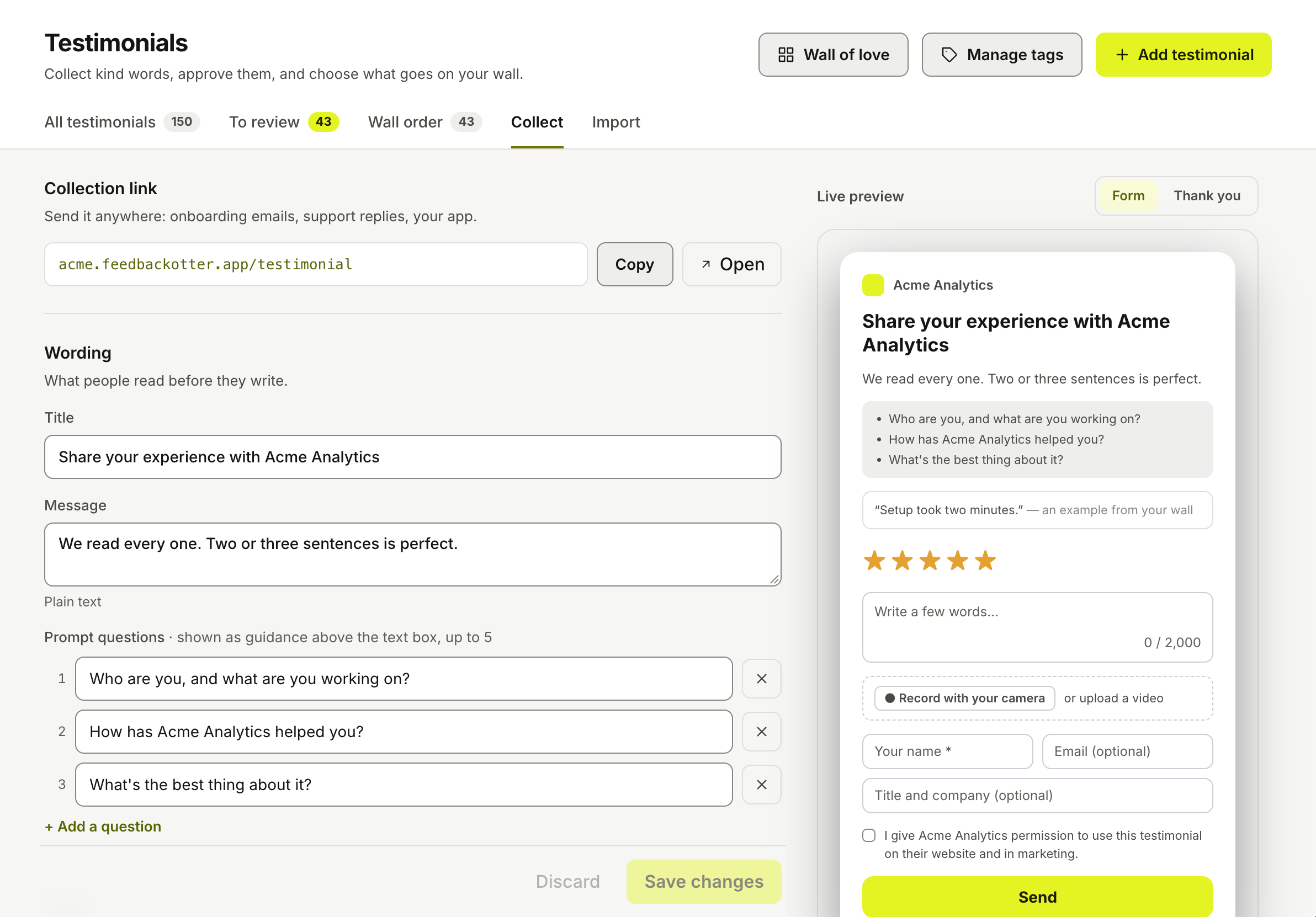
Your link looks like acme.feedbackotter.app/testimonial.
Click Copy and send it anywhere: onboarding emails, support replies, your app.
Change the wording
Section titled “Change the wording”Under Wording, edit the title, the message, and up to 5 prompt questions. The preview on the right updates as you type. Click Save changes.
Under Fields, choose what else to ask:
- Email, so you can thank them and tell them when it goes live. Tick Ask them to confirm their email to send a link. Unconfirmed ones still arrive, marked Email not verified.
- Title and company, shown under their name.
- Social or website link, shown next to their name.
- Max characters, from 100 to 2,000.
Name is always asked. Emails are never shown publicly.
What people see
Section titled “What people see”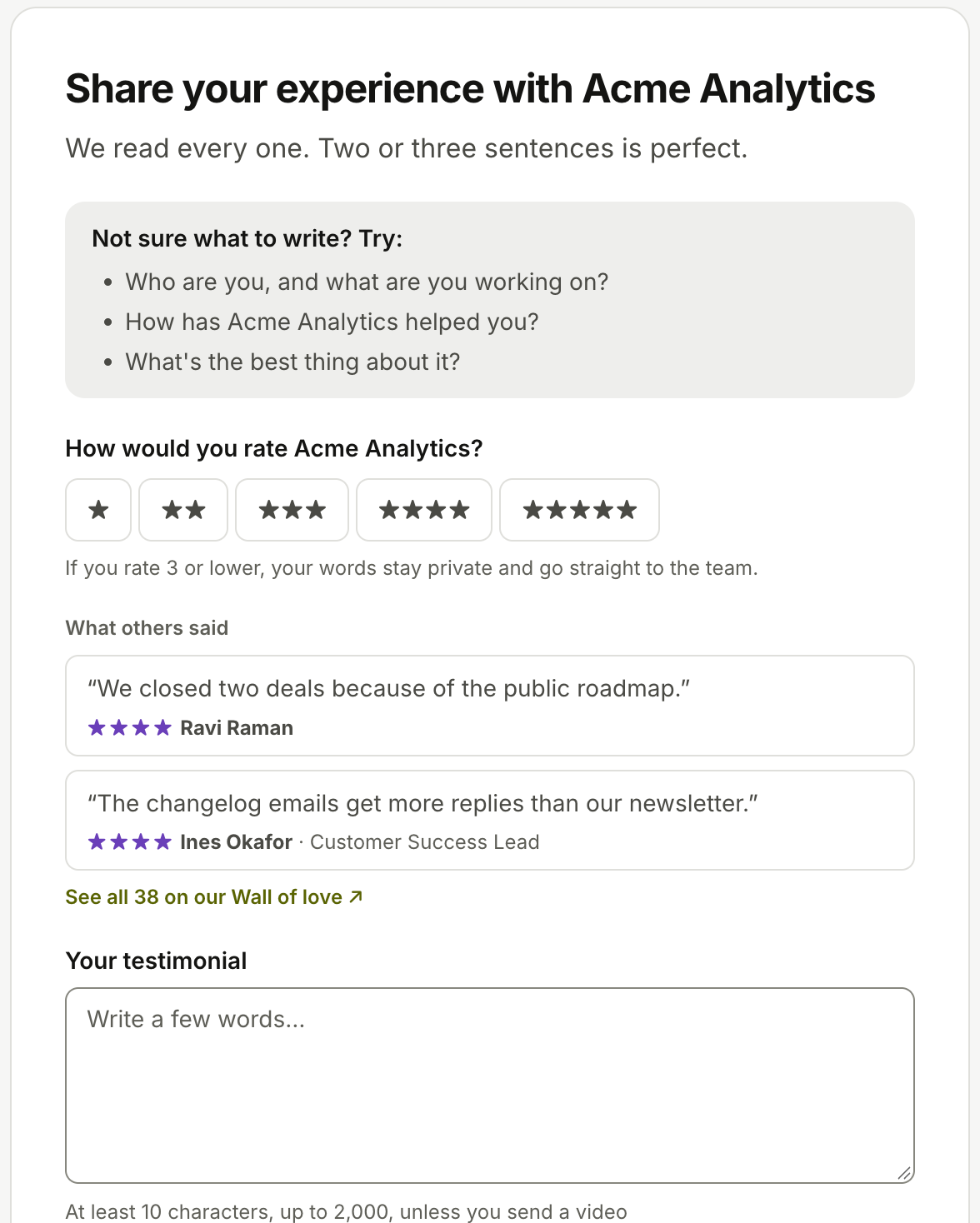
People rate you from 1 to 5 stars, then write a few words.
At the end, people tick a box to give you permission to publish it. Without that, it can’t go public.
Extras
Section titled “Extras”Lower on the Collect tab:
| Setting | What it does |
|---|---|
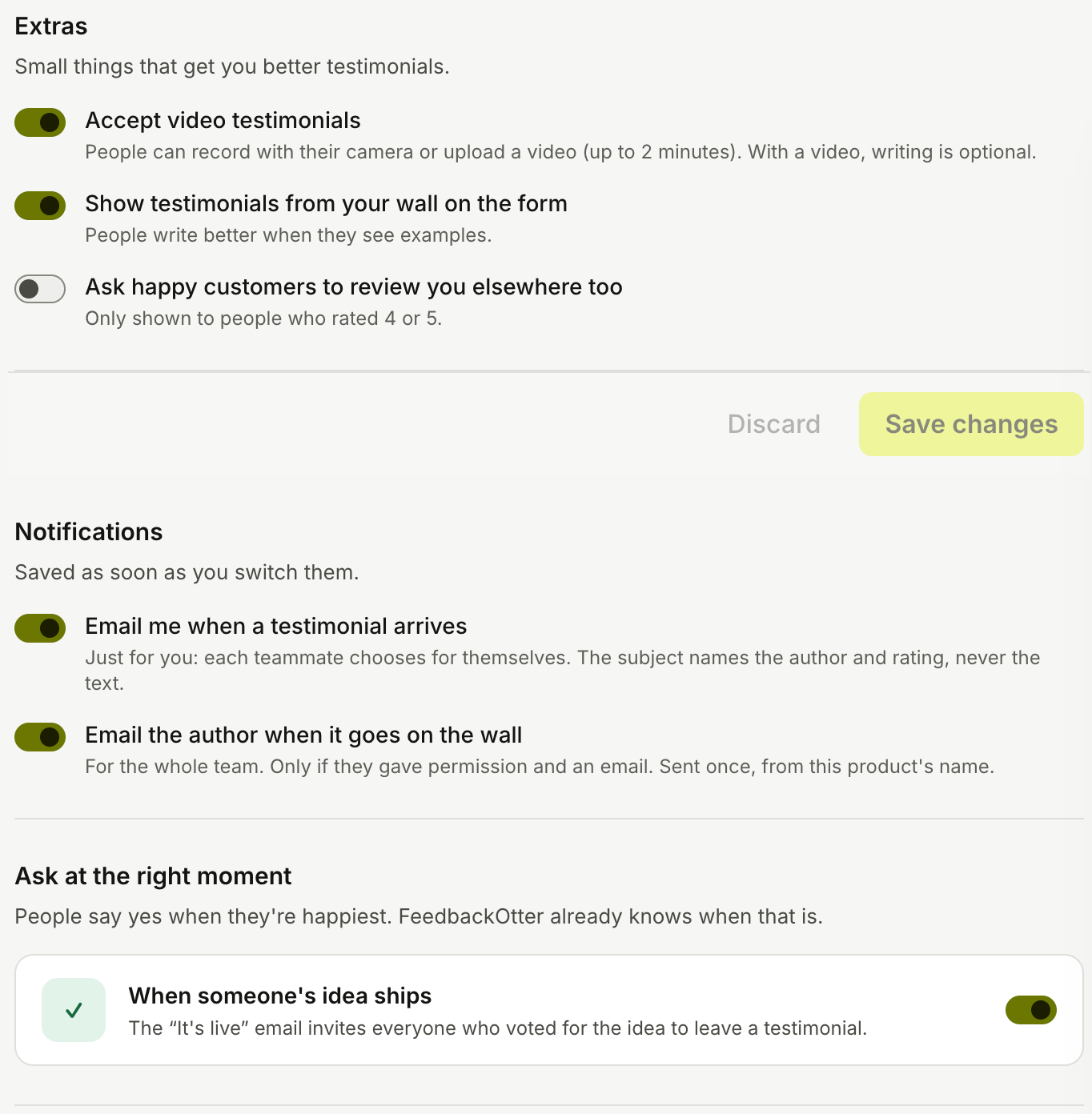
| Accept video testimonials | People record with their camera or upload a video, up to 2 minutes. With a video, writing is optional. |
| Show testimonials from your wall on the form | Shows a few examples. People write better when they see some. |
| Ask happy customers to review you elsewhere too | Links to review sites like G2, only for people who rated 4 or 5. |
| After sending | A thank-you screen, or send people to your own page. |
Video captions
Section titled “Video captions”We write captions for every video automatically, from its sound. It takes a few minutes. To fix a word, open the testimonial and click Captions…, then Edit captions.
Captions show with the video wherever it’s published.
Notifications
Section titled “Notifications”- Email me when a testimonial arrives: just for you. Each teammate chooses for themselves.
- Email the author when it goes on the wall: sent once, only if they gave permission and an email.
Ask at the right moment
Section titled “Ask at the right moment”People say yes when they’re happiest. With When someone’s idea ships on, the “It’s live” email asks everyone who voted for that idea to leave a testimonial.
Those testimonials are marked Idea shipped email, and show which idea it was.
Add a button to your site
Section titled “Add a button to your site”Go to Widgets → Collect button.
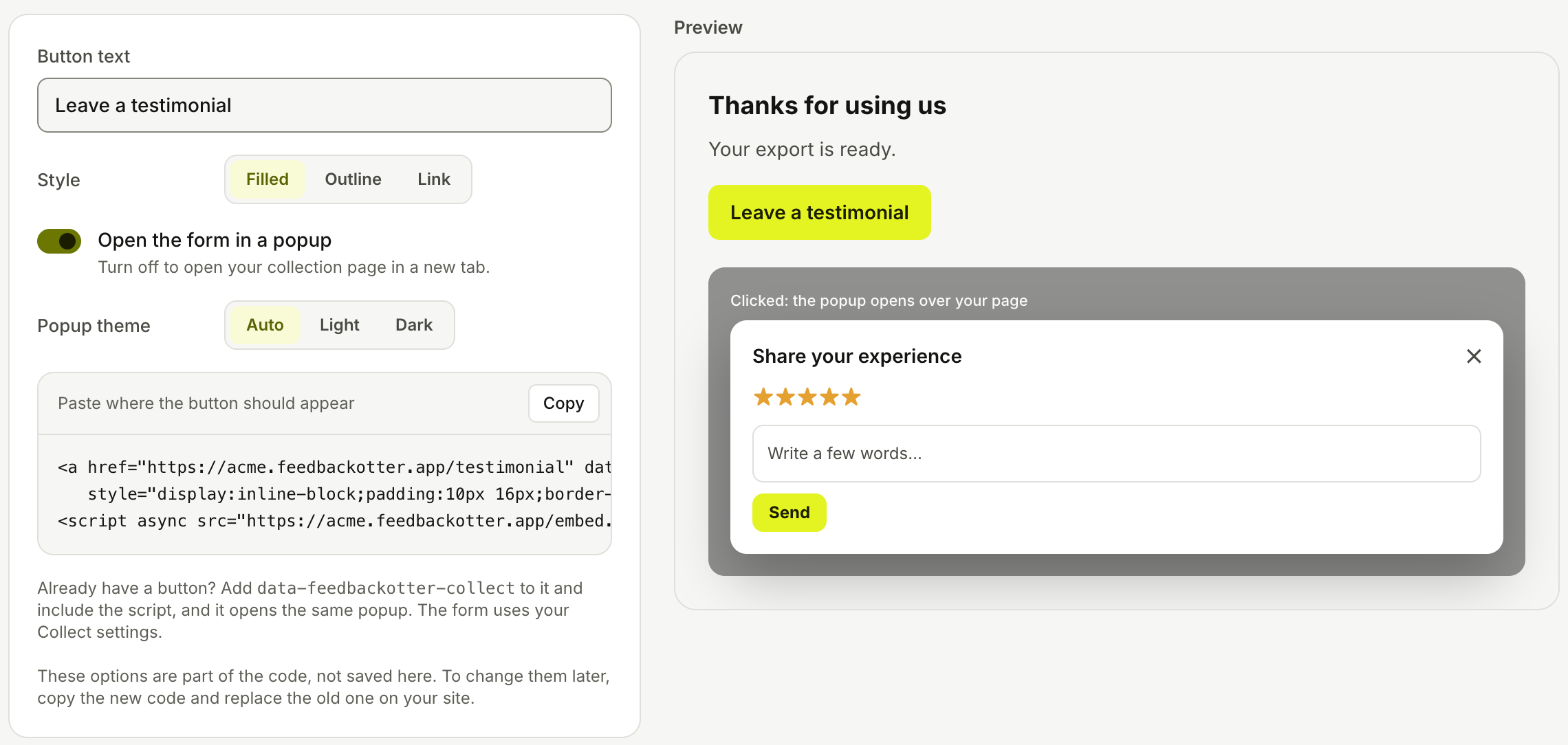
- Set the button text and style: Filled, Outline or Link.
- Keep Open the form in a popup on, or turn it off to open the form in a new tab.
- Click Copy and paste the code where the button should appear.
Already have a button? Add data-feedbackotter-collect to it and include the script:
<a href="https://acme.feedbackotter.app/testimonial" data-feedbackotter-collect> Leave a testimonial</a><script async src="https://acme.feedbackotter.app/embed.js"></script>The button’s options live in its code. To change them later, copy the new code and replace the old one.
Add testimonials you got elsewhere
Section titled “Add testimonials you got elsewhere”Kind words often arrive by email, on a call, or on a review site.
- Add testimonial: paste their words, and say where they came from: Email, Call or meeting, Chat or DM, or a Public review site. Tick This person said I can publish it. It’s marked Added by hand.
- Import: paste a review from a site like G2, Capterra or Product Hunt. It’s marked with the site’s name.
Testimonials you add are approved straight away. A rating of 3 or lower still stays private.